
Executions
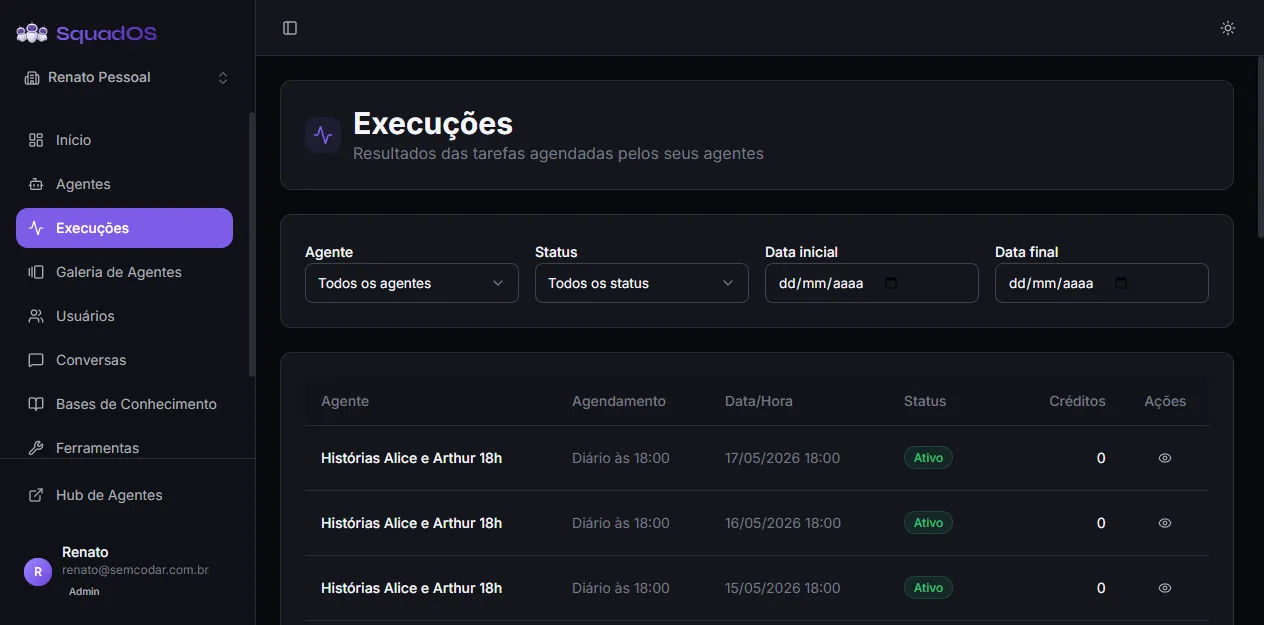
The Executions page (/admin/executions, shown as Executions in the sidebar) shows the history of scheduled tasks the organization’s agents ran. Each row represents one run — a time a schedule fired and the agent responded.
What an execution is
Section titled “What an execution is”An execution is one full run of an agent responding to a schedule (cron, interval, trigger). It includes:
- the initial scheduled call;
- the agent’s iterations calling tools;
- the final response or the error.
Executions coming from regular conversations (Hub, public channel, WhatsApp, API) do not appear here — for those, use the Conversations page or Analytics.
Filters
Section titled “Filters”Four filters cut the noise (labels exactly as shown on screen):
- Agent: pick a specific agent (default: All agents).
- Status: Active, Completed, Pending, or Failed (default: All statuses).
- Start date and End date: limit the interval, with date picker.
Filters combine. Every change resets to the first page.
What each row shows
Section titled “What each row shows”The table shows, per execution:
- Agent: agent name. If the agent was deleted later, you see Agent removed in grey.
- Schedule: name of the schedule that fired the run (taken from the conversation title).
- Date/Time: when the run started (dd/MM/yyyy HH:mm).
- Status: colored badge — green Active, blue Completed, yellow Pending, red Failed. When Failed and there is an error message, an alert icon appears next to it — hover for the full error tooltip.
- Credits: how much the run consumed. Shows
—when not yet calculated. - Actions: the eye icon (
View conversation) jumps straight to that execution’s conversation.
Debugging failed executions
Section titled “Debugging failed executions”When an execution shows Failed:
- Hover the alert icon to read the short error message in the tooltip.
- Click the eye icon to open the full conversation.
- In the conversation, expand each tool call to see the input sent and the response from the external service.
Common causes of failure:
- expired credential on a connected tool (reconnect in Tools);
- external service timeout;
- token limit exceeded;
- prompt error that makes the LLM answer outside the expected format.
Pagination
Section titled “Pagination”The table shows 20 executions per page. The footer shows N executions total on the left and navigation arrows on the right with current / total.
Best practices
Section titled “Best practices”- Set up a weekly routine to review Failed executions of the main agents.
- If a schedule keeps failing at the same step, suspect the involved tool first — open the tool’s account details to check for credential errors.
- Use the Agent filter when you already know only one agent is having trouble, instead of scanning the whole table.
- Credit spikes on specific runs usually mean tool loops or inflated context — worth reviewing the agent’s prompt.