
Organization Settings
The Settings page (/admin/settings) brings together everything that defines the identity and limits of the organization on SquadOS. It has four tabs: Subscription, Customization, AI Models, and API.
Subscription
Section titled “Subscription”Credit balance, active plan, agent/user/conversation counters, and the change-plan button. Full details in Plan and Credits.
Customization
Section titled “Customization”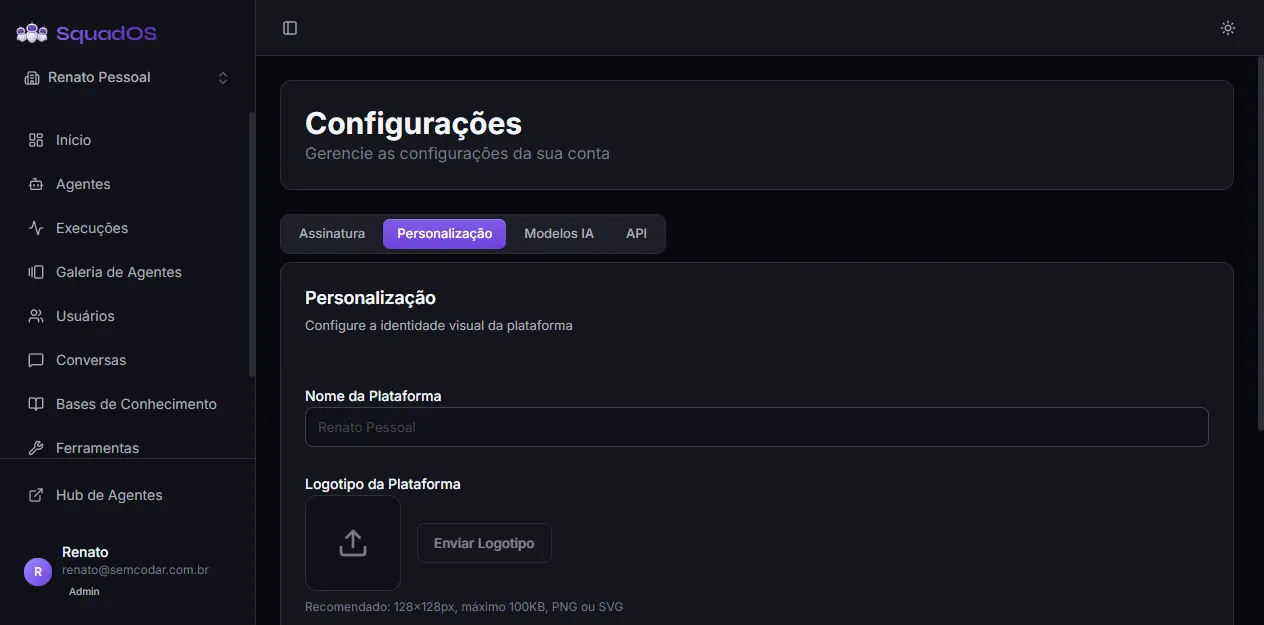
Here you tune the organization’s visual identity:
- Platform Name: appears in the Hub, in emails, and on top of the panel.
- Platform Logo: PNG, JPG, WEBP, or SVG, up to 100 KB. SVGs are uploaded as vector; bitmaps are resized to 128px automatically. Next to the logo are the upload button and, when one is already set, a red remove button.
- Hide SquadOS Logo: switch that is only enabled when the organization already has its own logo uploaded. When on, the SquadOS brand is hidden from Hub screens.
- Organization Locale: sets the default language for new users (Portuguese or English). Each user can still change their own language later.
The fields on this tab can only be edited by the organization owner. Other admins see the controls disabled with a tooltip explaining why.
Click Save Customization at the bottom to persist changes.
Remove the logo
Section titled “Remove the logo”- Click the Remove logo button (red, trash icon) next to the current logo.
- Confirm in the Remove Logo? modal.
- The logo is deleted from storage and the SquadOS brand reappears.
AI Models
Section titled “AI Models”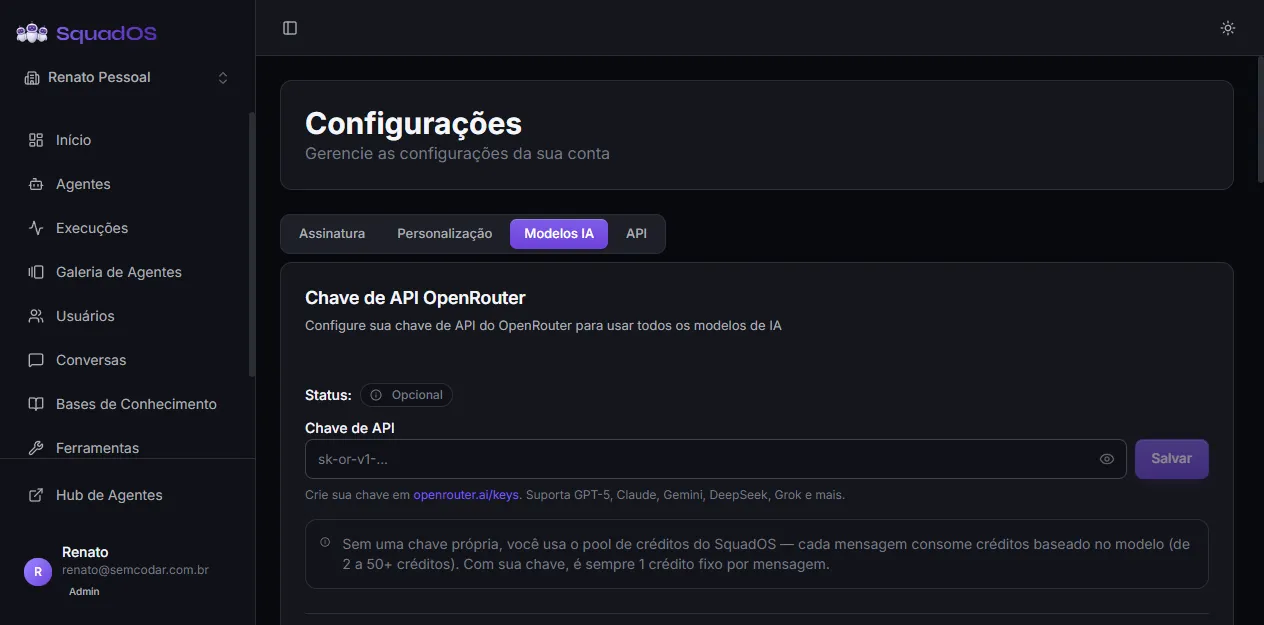
This tab controls which key powers the organization’s models.
Use SquadOS credits (default)
Section titled “Use SquadOS credits (default)”By default, the organization consumes platform credits. Each model has an estimated credit-per-message cost shown in the table.
Connect your own OpenRouter key
Section titled “Connect your own OpenRouter key”You can switch to your own OpenRouter key. When configured:
- token billing goes straight to your OpenRouter account;
- SquadOS only charges 1 credit per message as an orchestration fee;
- prices in the table switch to USD per million tokens (input and output) instead of credits.
To connect:
- Generate a key at openrouter.ai/keys.
- Paste it in the OpenRouter API Key field (visibility can be toggled with the eye icon).
- Click Save.
Once configured, the tab shows a green API Key Configured card with a Disconnect button (red). Disconnecting brings the organization back to SquadOS credits.
Models table
Section titled “Models table”The Available Models section lists every model with:
- Model (with provider logo);
- Provider (Anthropic, OpenAI, Google, etc.);
- Capabilities (icons for images / audio / files; or “Text only”);
- Cost: if you have your own key, shows USD per million tokens (input and output); if you use SquadOS credits, shows credits per message (estimate).
The capability icon legend is above the table.
Show credits in conversations
Section titled “Show credits in conversations”At the bottom of the tab, the Show credits in conversations switch lets Hub users see how many credits each agent message consumed. Useful for internal transparency; keep it off if you do not want to expose cost to end users.
Holds API REST token generation and management. Full details in REST API and Tokens.
Change the admin password
Section titled “Change the admin password”The logged-in user’s password is changed on the Account page (click the avatar at the bottom of the sidebar), not in Organization Settings. In the Security card, click Change password to open the modal:
- Enter the current password.
- Enter the new password (minimum 6 characters).
- Confirm the new password.
- Click Save.
The system re-authenticates you with the current password before applying the change. If the current password is wrong, the field shows an inline error and nothing changes.
Switch organization
Section titled “Switch organization”If you are a member of more than one organization, use the organization selector at the top of the sidebar (above the menu items). Switching reloads every screen’s data (agents, tools, conversations, billing) for the new organization.
Superadmins also have a View all organizations entry in the selector to access any organization on the platform.