
Multimodal (Attachments)
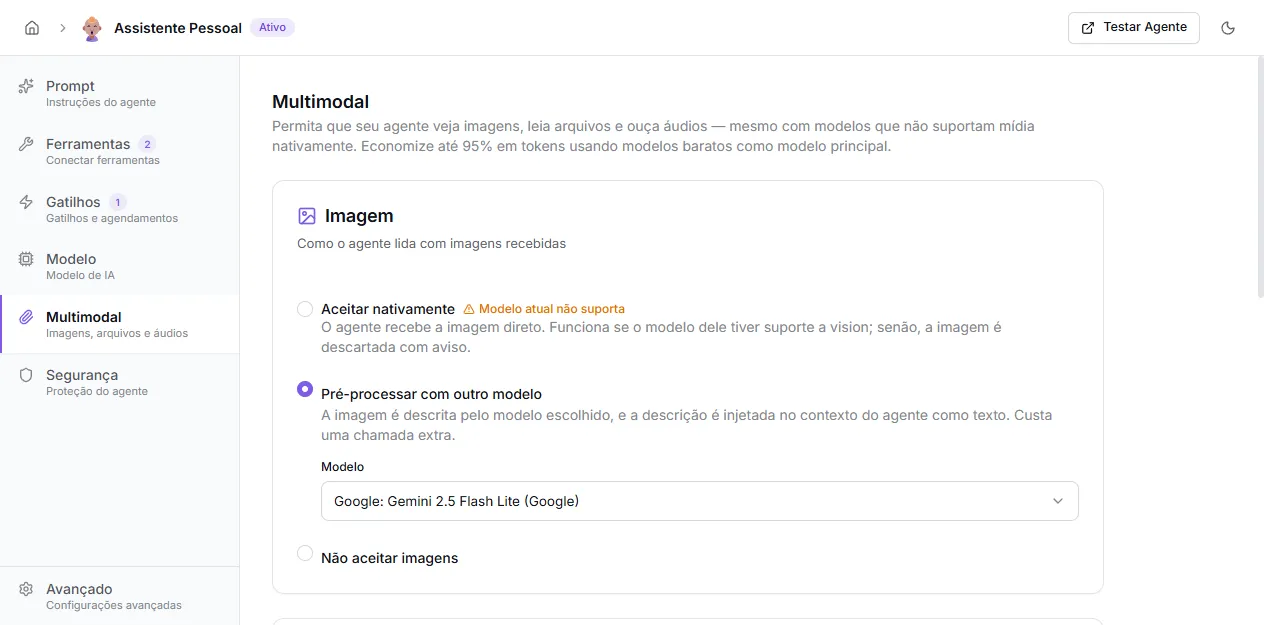
The Multimodal tab controls how the agent handles attachments sent by the user — images, files, and audio. You decide whether each type is accepted natively, pre-processed by another model, or blocked with a friendly message.
When to enable
Section titled “When to enable”Enable attachments when the agent needs to:
- read screenshots, product photos, receipts, or diagrams (image);
- analyze PDFs, spreadsheets, contracts, or other documents (file);
- transcribe voice messages from WhatsApp and similar (audio).
If the agent doesn’t need any of these, leave them off — you avoid cost and confused replies when users send something the agent wouldn’t use.
Modes (image and file)
Section titled “Modes (image and file)”Each card has three radio options:
- Accept natively: the attachment goes straight to the agent’s model. Only works if the model picked in Model supports it (the UI shows a “Current model doesn’t support” warning when it doesn’t).
- Pre-process with another model: an auxiliary model reads the attachment and injects a description into the context as text. Costs an extra call, but lets you run a cheap model as the main one and still read images or files. Pick which model to use in the select below.
- Don’t accept: the attachment is rejected and the user receives a custom message in Portuguese and English that you define.
Pre-processing is great for saving cost: run the main agent on a cheap model and use a vision-capable model only for the image description.
The audio card is simpler: on or off. When on, audio is automatically transcribed with Whisper (OpenAI) and the text reaches the agent as if it were typed. Costs about 13 credits per minute transcribed.
When off, you define the message users see when they send audio.
Accepted formats
Section titled “Accepted formats”- Image: PNG, JPG, WEBP, GIF.
- Files: PDF (with OCR on compatible models), DOCX, XLSX, CSV, TXT, and other common documents.
- Audio: formats supported by Whisper (MP3, M4A, OGG, WAV, etc.).
Size limits follow what each model accepts — usually a few megabytes per attachment.
Recommendations
Section titled “Recommendations”- If the main model already supports vision and files, use Accept natively — cheapest and fastest.
- If you want to run the agent on a low-cost model but still need image reading, use Pre-process.
- Always write a clear fallback message in disabled mode, explaining how the user can rephrase the request in text.
Where to configure
Section titled “Where to configure”Open the agent under Agents, click Multimodal in the sidebar, adjust the three cards and click Save.