
Audio and Transcription
You can speak to the agent instead of typing. SquadOS records the audio in your browser, sends it for automatic transcription, and inserts the resulting text into the message field. You still review it before sending.
Recording audio
Section titled “Recording audio”Inside chat (Hub, public link, widget, or admin panel during intervention), the microphone button appears in the composer action bar, next to the attachment button.
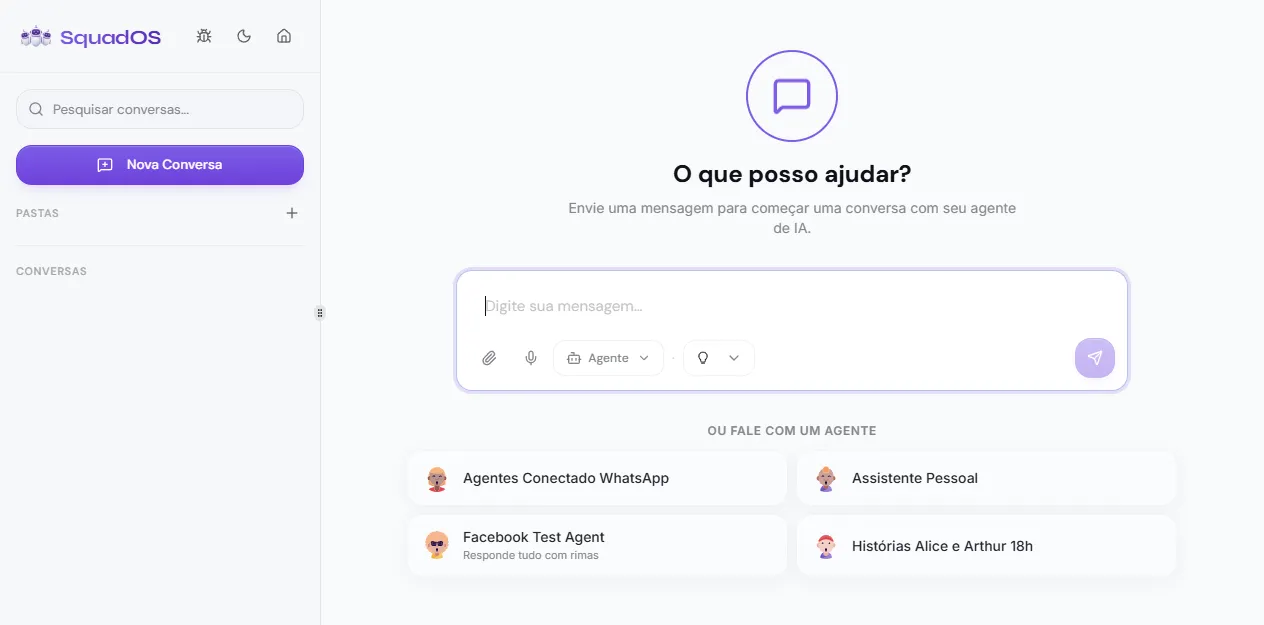
- Click the microphone icon.
- Allow your browser to use the microphone the first time. The permission is remembered for next uses.
- Speak your message. The composer shows an animated visualizer and the recording duration.
- Click the send button (paper plane icon) to finish and transcribe.
- To discard without sending, click the X next to the visualizer.
The recording must be at least 1 second long and lasts at most 2 minutes (120 seconds). If you go over the limit, SquadOS stops automatically.
What happens to the audio
Section titled “What happens to the audio”As soon as you confirm:
- The audio leaves the browser encoded as mono webm/opus at 16 kHz.
- It goes to the SquadOS transcription edge function.
- The function calls the OpenAI Whisper model, tuned for Portuguese.
- The text comes back and is automatically inserted into the message field, appended to whatever you had typed (if any).
- You review the text, adjust if needed, and send as usual.
The audio is not stored after transcription — only the text stays in the conversation history.
Language
Section titled “Language”Transcription is configured for Portuguese by default in SquadOS. Whisper can still interpret words from other languages mixed into the speech, but the result is better when you speak clear Portuguese.
Accepted formats
Section titled “Accepted formats”In-browser recording uses the best format supported by the device, in this order: webm/opus, webm, ogg/opus, mp4, mpeg. You do not have to choose anything — SquadOS detects it automatically.
When audio comes from other integrations (for example WhatsApp), the backend also accepts mp3, wav, ogg, m4a, aac, and flac.
Limits and quality
Section titled “Limits and quality”- Minimum duration: 1 second (you get a notice if you record less).
- Maximum duration: 120 seconds per recording.
- Microphone: recording quality depends on the device’s microphone. Headsets or external mics usually give better results than a laptop’s built-in mic.
- Environment: noisy environments hurt transcription. Whisper has decent noise handling, but nothing replaces a quiet room.
- Silence: if you record only silence, transcription comes back empty and no text is added — no error shown.
When the microphone is not available
Section titled “When the microphone is not available”The button disappears when:
- The agent has audio disabled: in the agent configuration, under Attachments -> Audio, the admin can turn off the feature. In that case the agent replies with a default (configurable) message saying it only handles text.
- The browser blocked the microphone: revoke the block under Site settings -> Microphone in your browser and reload the page.
- The device has no microphone: the browser returns “No microphone found”. Plug in an input device and try again.
- Permission denied: if you previously declined access, open the site permissions and switch to Allow.
Common errors
Section titled “Common errors”- “Microphone permission denied”: you did not authorize the browser. Grant the permission and try again.
- “Error transcribing audio”: temporary failure of the transcription service. Try again in a few seconds.
- Truncated or odd text: recording with too much noise, very fast speech, or a low-quality microphone. Redo it in a quieter environment.