
Uploading Documents
There are three ways to add content to a base: paste a text block, upload a file, or import many items at once via CSV. All three create items that are processed (chunked and indexed) automatically in the background.
Add a single item (text or file)
Section titled “Add a single item (text or file)”On the base screen, click + Add Item. You land on a screen with two tabs: Text Block (default) and File.
Text Block
Section titled “Text Block”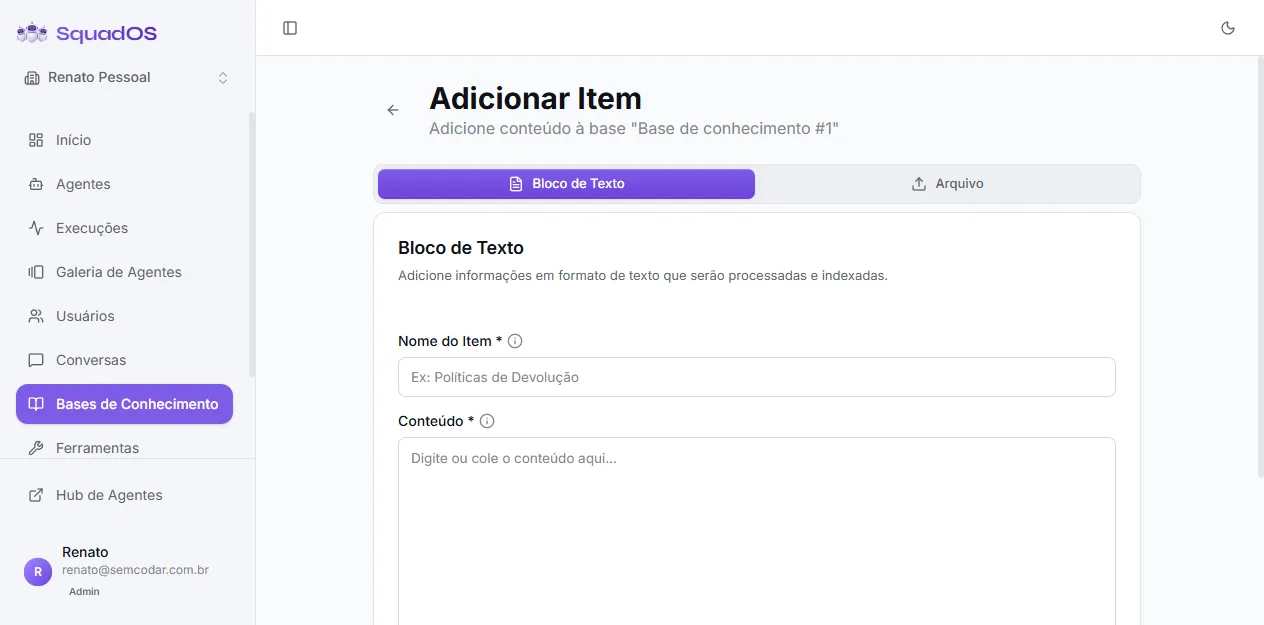
Best for FAQs, short policies, and text blocks you want direct control over.
- Fill in the Item Name (shown as the item title in the list).
- Paste or type the Content.
- Click Add Item.
The item enters with status Pending and is processed next.
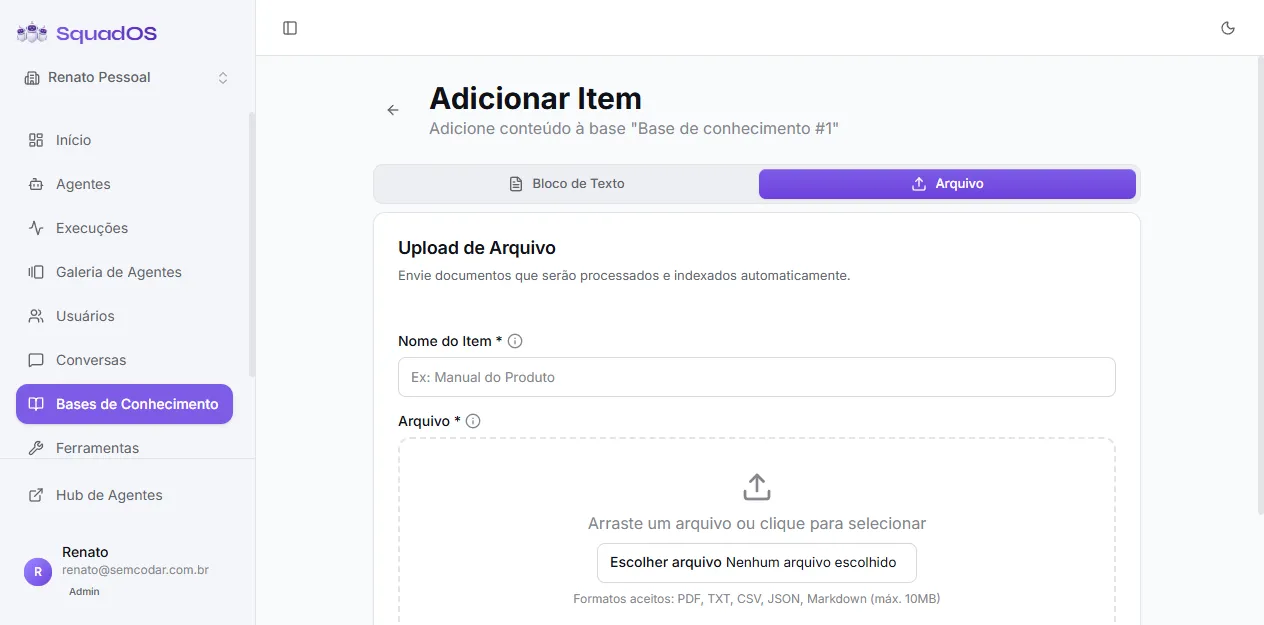
Use this for finished documents. Accepted formats: PDF, TXT, CSV, JSON, and Markdown, up to 10 MB per file.
- Fill in the Item Name.
- Drag the file onto the dashed area or click Choose file.
- Click Send File.
Content is extracted automatically — you only need to wait for processing to finish. Items coming from a file are not editable in the UI; to change the content, delete it and upload again.
Bulk import (CSV)
Section titled “Bulk import (CSV)”To populate a base quickly, use Import CSV at the top of the base screen. The modal explains the expected format:
- column separator: semicolon (
;); - columns:
title;content; - double quotes for content with line breaks.
The modal has a Download Example Spreadsheet button that generates a ready-to-edit CSV. After picking the file, the modal shows a preview of the first 3 detected items before you confirm.
Before uploading
Section titled “Before uploading”Clean content improves retrieval and reduces contradictory answers. Worth reviewing:
- remove irrelevant pages;
- prefer clear and up-to-date text;
- split very different topics into different files;
- avoid duplicating the same content across multiple bases.
Best practices
Section titled “Best practices”- Descriptive titles. The agent does not use the title in search, but you do when you need to find an item to edit.
- Break very large files by topic. Very long text becomes many chunks and fragments context.
- Update or remove old content. A repealed policy becomes a source of error.
- Test real questions after every important import.
When the agent does not find the information
Section titled “When the agent does not find the information”- Confirm the base is connected to the agent in Tools → Search Knowledge Base.
- Check that the item has status Processed (see Organizing Base Items).
- Rewrite confusing or generic excerpts.
- Watch the AutoLearn tab — questions the agent failed to answer show up there with answer suggestions.