
WhatsApp via Z-API
Z-API is a Brazilian provider that exposes WhatsApp Web as a REST API. You keep the instance on Z-API’s dashboard (which is where you scan the QR code) and SquadOS only sends and receives messages through the webhook. Use this when you already have (or prefer to use) Z-API as a gateway — you pay them directly, no Cloud API or Business Manager required.
When to use
Section titled “When to use”| Use Z-API when | Don’t use when |
|---|---|
| You already have instances on Z-API | You’d open a brand-new account just for this — Cloud API is usually cheaper at volume |
| You need fast sending without queues or template approvals | You need SLAs, official metrics, or Meta-approved HSM templates |
| You want to run tests or an MVP without dealing with Business Manager | Critical support where a dropped session is unacceptable |
Prerequisites
Section titled “Prerequisites”Before you connect:
- Active Z-API account with an instance created and connected (QR code already scanned, status “Connected” on Z-API’s dashboard).
- The three instance credentials at hand:
- Instance ID — instance identifier (visible on the dashboard).
- Instance Token — the instance token.
- Account Security Token — the account-level security token (also called Client Token).
You’ll find all three on Z-API’s dashboard, on your instance page. The QR code is scanned there, not on SquadOS — SquadOS only uses the credentials to send and receive messages.
Step by step
Section titled “Step by step”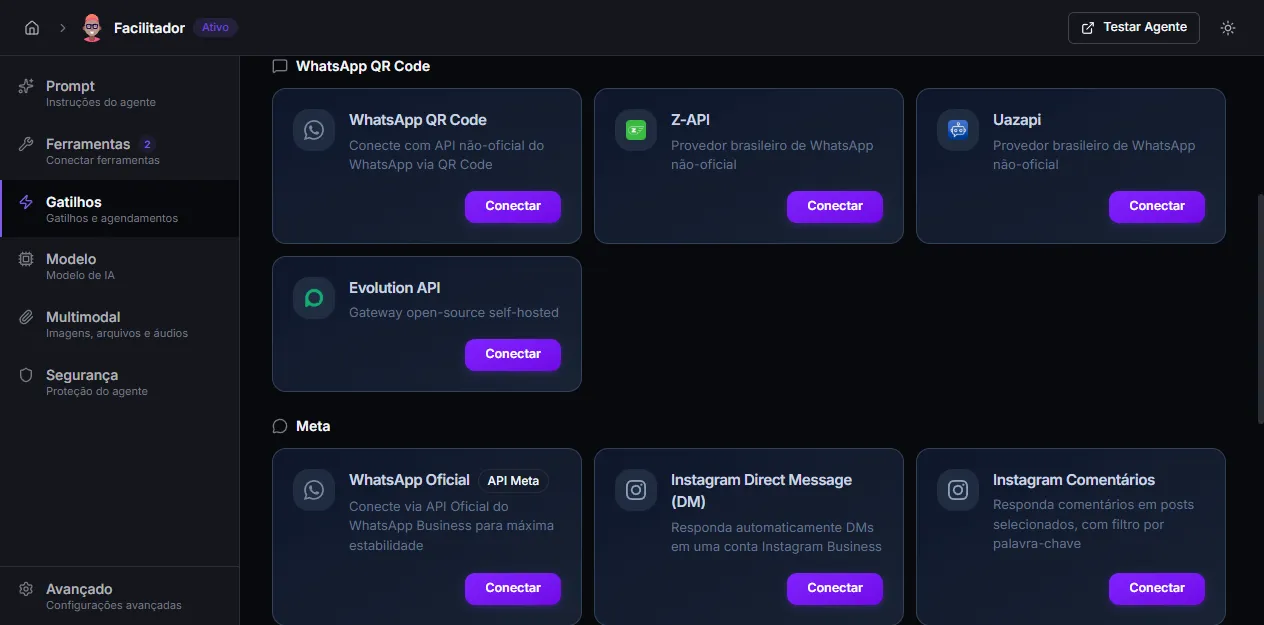
-
Open Admin → Agents → [your agent] → Triggers.
-
On the Z-API card (inside the WhatsApp QR Code section), click Connect.
-
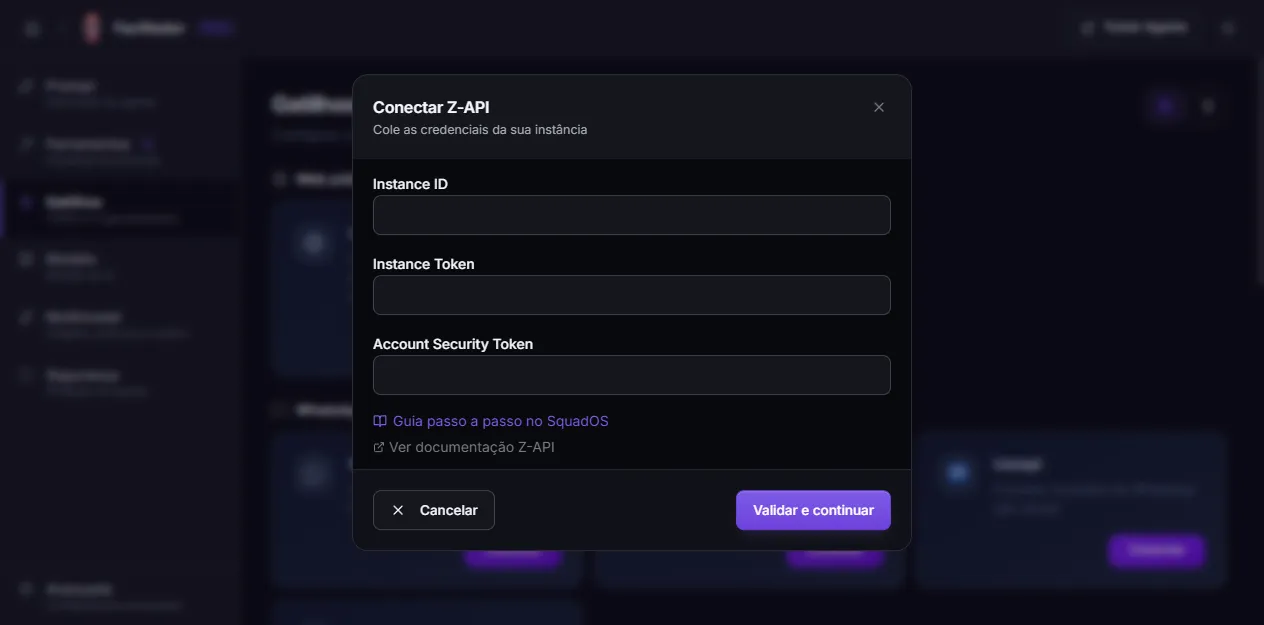
Paste the three credentials in the matching fields:
-
Click Validate and continue. SquadOS calls Z-API’s
/statusendpoint to confirm the credentials work — if any token is wrong, the modal shows the error and nothing is saved. -
The next step shows a webhook URL generated by SquadOS, unique to that agent. Copy the URL and, on Z-API’s dashboard:
- Go to Webhooks → On message received.
- Paste the URL in the matching field.
- Save.
-
Back in SquadOS, click I’ve configured the webhook.
-
SquadOS verifies the connection by calling
/statusagain on Z-API. If your instance is connected (QR already scanned on their panel), the card switches to Connected and the number appears.
If verification fails with “The instance is not connected yet”, open the Z-API dashboard, confirm your instance shows status Connected (scan the QR there if needed) and click Check again in SquadOS.
How it works
Section titled “How it works”- SquadOS does not host your WhatsApp session — it lives entirely on Z-API.
- Messages received by Z-API are delivered to SquadOS’s webhook, become conversations, and the agent replies via
POST /send-texton Z-API. - SquadOS never sees the QR code: Z-API is what keeps the session alive. If the phone drops, you reconnect on their dashboard.
Editing credentials later
Section titled “Editing credentials later”If you need to rotate tokens (for example, you regenerated the Account Security Token on Z-API), open the connected Z-API card, click the info button and edit the fields. SquadOS revalidates against Z-API before saving; if the new set fails to authenticate, the previous one is kept.
The webhook URL does not change when you update credentials — it’s fixed per agent.
Disconnecting
Section titled “Disconnecting”On the connected Z-API card, click Disconnect. SquadOS calls /disconnect on Z-API and marks the trigger as inactive. The Z-API instance itself keeps existing — if you want to actually end the WhatsApp session, do that on their dashboard.
Troubleshooting
Section titled “Troubleshooting”- “Invalid credentials” at step 1. Double-check Instance ID, Instance Token and Account Security Token — extra whitespace or line breaks pasted from the clipboard are the usual culprit. SquadOS calls
/statusto validate; if Z-API responds 401/403, this error shows up. - Webhook configured but no messages arriving. On Z-API’s dashboard, confirm the webhook is set under On message received (not on another event). Confirm the instance status is Connected — a dropped session does not deliver messages.
- Agent replies, customer doesn’t receive. The customer’s number may be blocked on Z-API, or Z-API may have dropped the session for abnormal usage. Check Z-API’s outbound history.
- Session drops on its own. WhatsApp Web invalidates sessions often (phone without internet, SIM swap, detected abnormal use). Reconnect on Z-API’s dashboard. If this happens a lot, consider migrating to Official WhatsApp.