
Accepting an Invite
When an admin invites you to a SquadOS organization, you receive an email with a unique link. That link takes you to the acceptance screen, where you either create an account or sign in with one you already have.
Receiving the email
Section titled “Receiving the email”The invitation arrives at the email registered by the admin. The message identifies SquadOS and shows:
- the name of the organization inviting you;
- the role you will take (Admin, Collaborator, or User);
- an Accept invite button with a unique link.
If you cannot find the message, check the spam folder. Each link is personal and works only once — do not share it.
Clicking the link
Section titled “Clicking the link”The button leads to /accept-invite?token=.... The page validates the invitation, and what you see next depends on whether you already have an account with that email.
You do not have an account yet
Section titled “You do not have an account yet”The Create account screen appears, with your name and email already filled in:
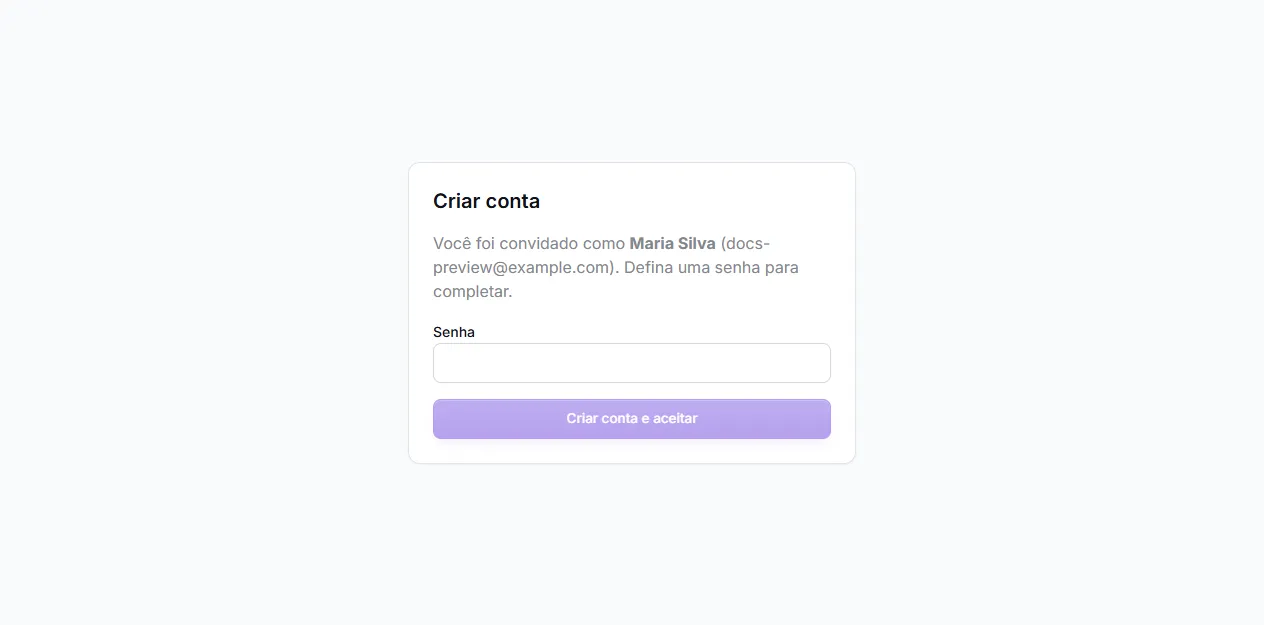
- Set a password with at least 8 characters.
- Click Create account and accept.
- SquadOS creates the account, accepts the invitation, and logs you in.
- You are redirected to the admin panel (if the role is Admin or above) or to the Agent Hub (if it is User or Collaborator).
You don’t need a separate email confirmation step — the invitation already proves the email belongs to you.
You already have a SquadOS account
Section titled “You already have a SquadOS account”If the email already exists:
- The page asks you to Sign in.
- Log in with email and password as usual.
- You go back to the acceptance screen and click Accept invite.
- The new organization becomes your active one.
You now have access to two (or more) organizations and switch between them through the selector at the top of the sidebar.
You are signed in with a different email
Section titled “You are signed in with a different email”If you were already logged in to a different account, the screen shows an Email mismatch warning and offers a Sign out and sign in with the correct email button:
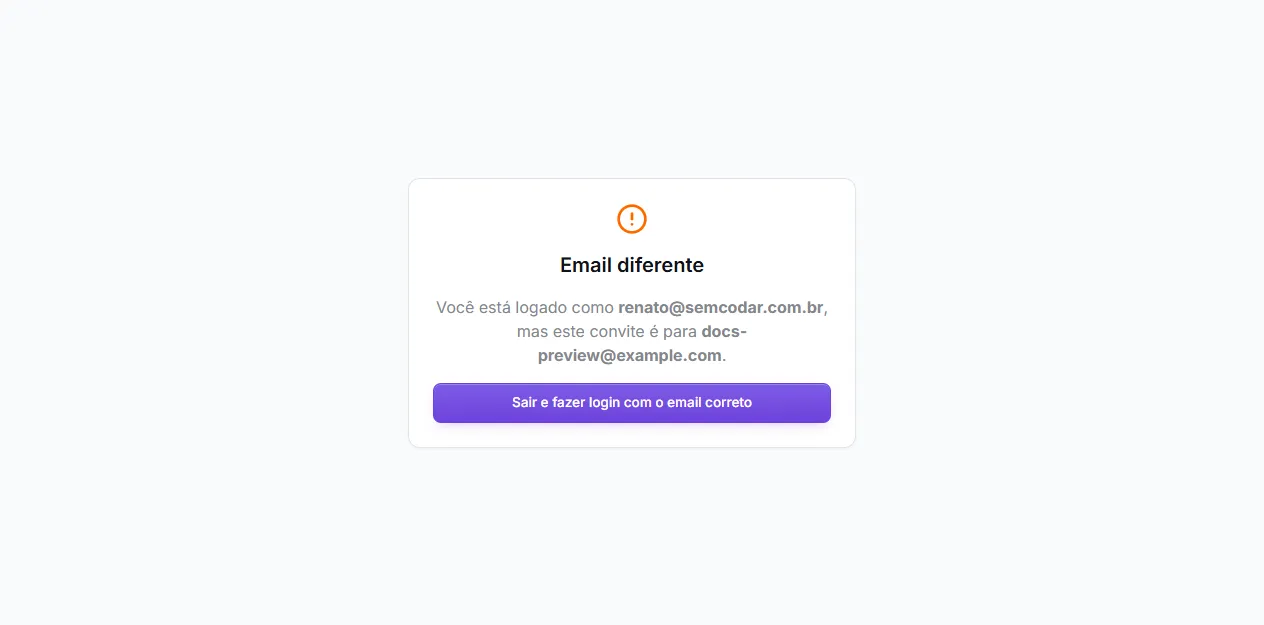
Log out and sign in with the invited email to accept.
Assigned role
Section titled “Assigned role”The role chosen by the admin defines what shows up after you join (see Users and Roles for the full table):
- User: accesses the Agent Hub to talk to agents.
- Collaborator: accesses the Hub and contributes to shared conversations and teams.
- Admin: accesses the full admin panel (agents, bases, tools, users, conversations, analytics, billing).
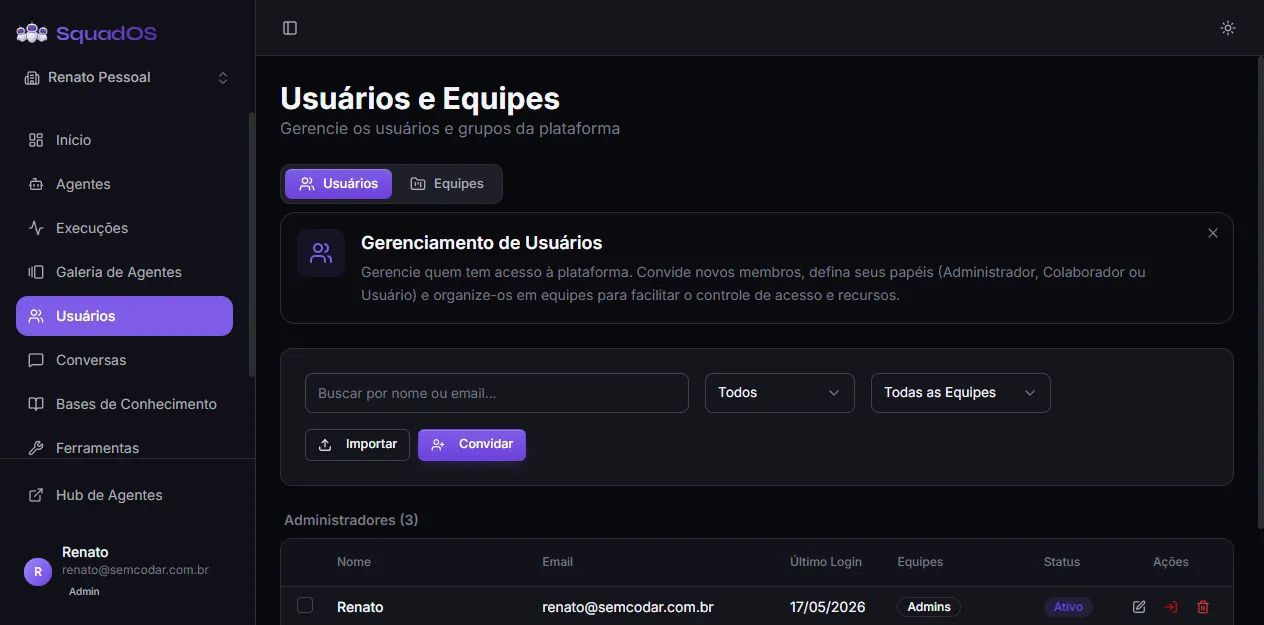
If you expected a different access level, ask the admin to review your role in Users in the admin panel.
Invitations can already come associated with one or more teams in the organization. When you accept, you automatically join those teams and gain access to the agents, bases, and tools they share.
When the invite doesn’t work
Section titled “When the invite doesn’t work”The /accept-invite page shows the Invalid invite state with a message explaining why:
- Invite expired — invitations are valid for 7 days. Ask the admin to resend through Resend invite in the pending-invitations list under Users.
- This invite has already been accepted — the link is single-use. If you already joined, sign in directly instead of opening the link again.
- Invite not found — the link may have been revoked or truncated by a copy/paste error. Request a new one.
- Plan limit reached — if the organization hit the plan’s user limit, the admin needs to upgrade or free a seat before resending.