
Organization Tools
Tools give your agents extra capabilities — send emails, query spreadsheets, integrate with your CRM, call an internal API, and much more. The Tools page (/admin/tools) is where you decide which integrations are available to the organization’s agents.
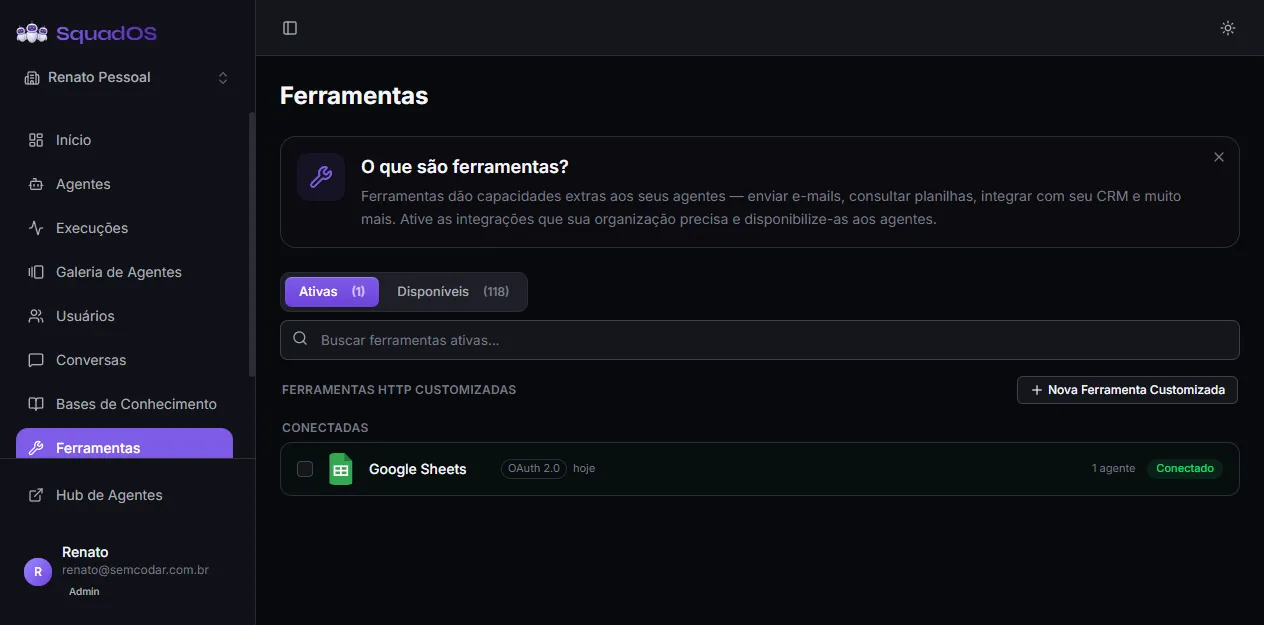
Two tabs: Active and Available
Section titled “Two tabs: Active and Available”The page has two tabs with counters in parentheses:
- Active (N): tools already connected/activated for the organization. Any agent can attach them.
- Available (N): catalog of Composio integrations you have not activated yet.
The Active tab shows a name search and the highlighted Custom HTTP Tools section with a New Custom Tool button. The Available tab shows filters (search + sort by popularity or alphabetical) and pagination.
Activate a new tool
Section titled “Activate a new tool”- Go to the Available tab.
- Use search or filters to find the integration (Gmail, Slack, HubSpot, Notion, etc.).
- Click the tool card to open the Configure tool modal.
- Click Connect (or Activate, for tools that need no login).
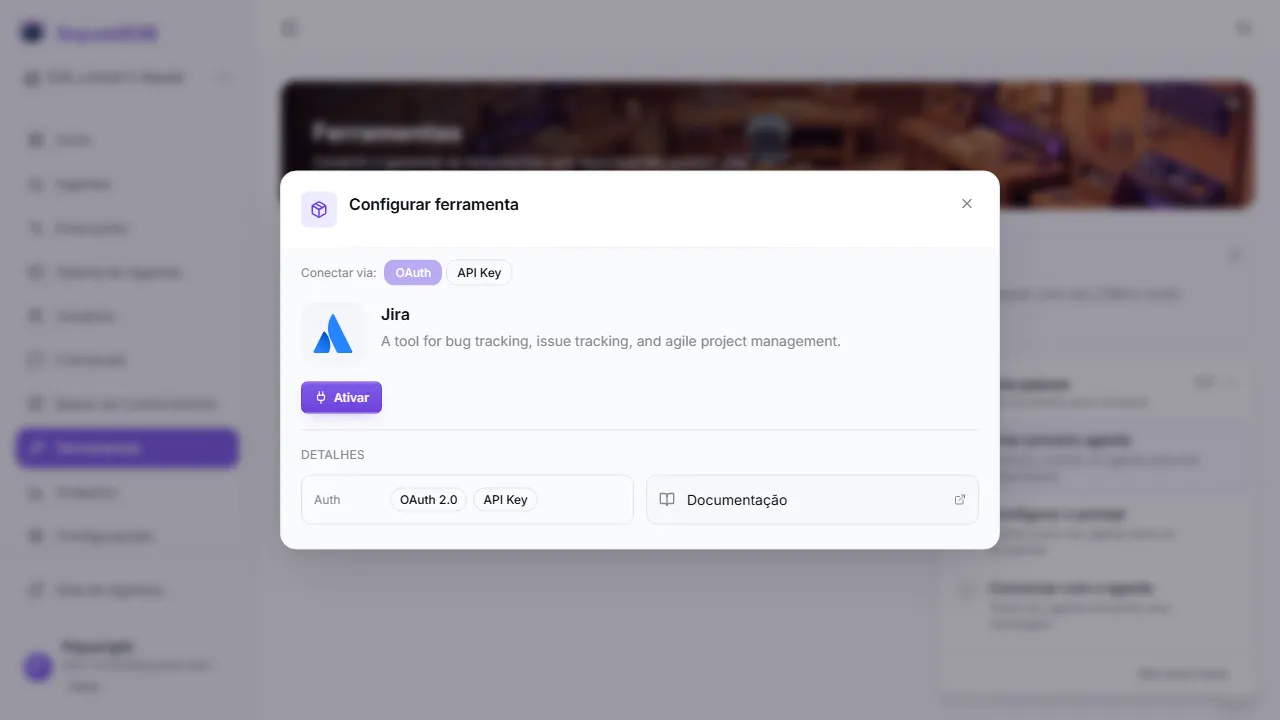
What happens next depends on the tool’s auth type:
- No auth (public tools): you just click Activate and the tool moves to the active list, with no login step.
- Everything else (OAuth, API Key, Username & password, Token, or service-specific fields like WhatsApp’s WABA ID): clicking Connect takes you to a secure connection page hosted by Composio — SquadOS’s integration partner. That’s where you authorize access (OAuth) or enter the credentials. When you’re done, you’re sent back to SquadOS with the account already connected.
The Composio connection page
Section titled “The Composio connection page”Connecting any tool opens a page on a Composio domain
(connect.composio.dev), titled “SquadOS wants to connect to your …” with a
“Secured by Composio” badge. This is expected — leaving SquadOS for that
page is part of the flow. Composio handles each service’s login/credentials for
you, so there is no credential form inside SquadOS itself.
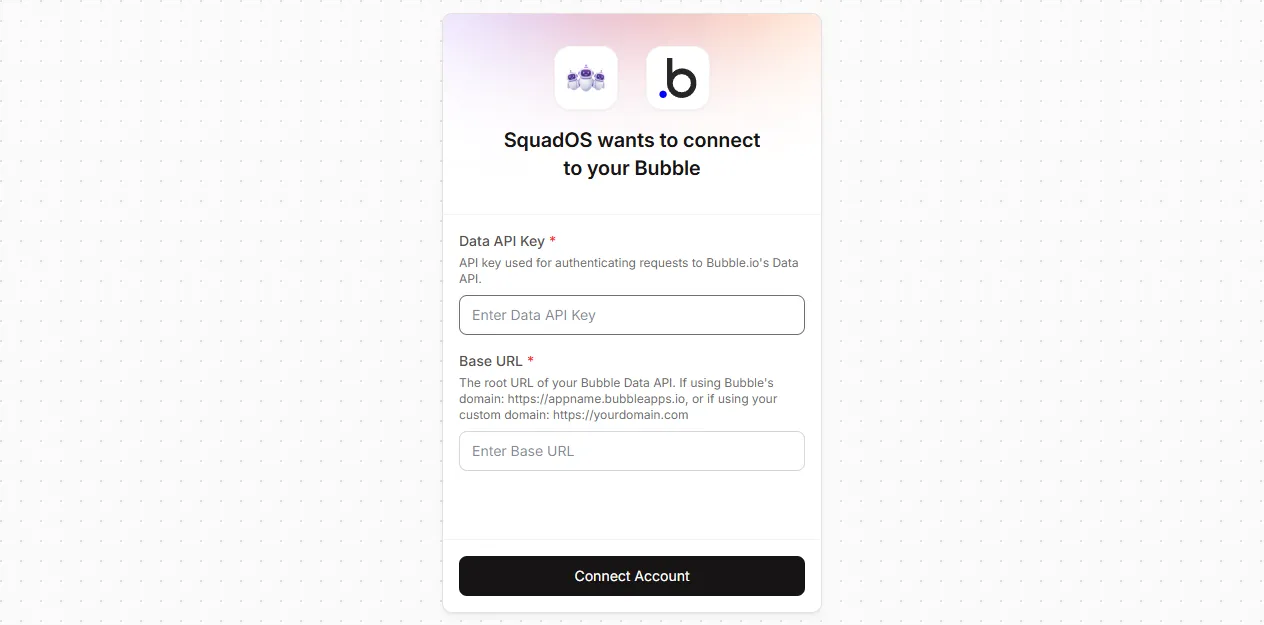
For services that need specific fields (subdomain, account ID, WABA ID, etc.), the Composio page shows the right fields with helper text — you don’t have to figure out the format yourself.
If the tool offers more than one auth type, pick it via the Connect via selector at the top of the modal before clicking Connect (OAuth is preselected by default). The connection page is generated for the chosen method.
Manage connected accounts
Section titled “Manage connected accounts”Each tool can have more than one account connected (for example, two Gmails). On the Active tab, click a tool to open the details modal. You will see:
- connection status (Active, Error, Disconnected);
- auth type used;
- last verification date;
- list of agents using this tool.
From there you can:
- Reconnect if the account is in error (generates a new connection via the Composio page);
- Rename the account by clicking on the name;
- Add account to have multiple accounts for the same tool — also takes you to the Composio connection page;
- Disconnect (keeps the tool active in the org, but turns off the account);
- Remove (drops the tool entirely from the organization).
Bulk actions
Section titled “Bulk actions”Select multiple tools at once using the checkbox on each card. The bulk action bar appears at the top with:
- Disconnect (on Active) — disconnects the accounts but keeps the tools in the organization.
- Remove (on Active) — drops the tools entirely from the organization.
- Activate (on Available) — activates several tools at once.
The bar shows a progress counter as it processes item by item.
Organization custom HTTP tools
Section titled “Organization custom HTTP tools”Beyond Composio integrations, you can create custom HTTP tools that point at any endpoint in your own infra or a SaaS not in the catalog.
In the Active tab, find the Custom HTTP Tools section and click New Custom Tool. You define:
- Internal name (used by the agent) and display name;
- Description that guides the LLM on when to call this tool;
- Endpoint URL and HTTP method (GET, POST, PATCH, PUT, DELETE);
- Auth type (none, custom header, bearer token);
- Parameters the agent will fill on call, each with name, type, description, and required flag.
After saving, the tool appears in the active list with an orange indicator and can be attached to any agent.
Best practices
Section titled “Best practices”- Only activate what your organization will actually use — every tool in the agent’s context costs tokens.
- Use clear names and descriptions for HTTP-tool parameters — the LLM relies on them to fill the right arguments.
- Review the Active tab periodically and remove tools no agent is using anymore.
- When a tool starts failing often, open Execution Logs to investigate the cause.