
Quick Start
This is the shortest path from zero to an agent replying in chat.
1. Enter the admin panel
Section titled “1. Enter the admin panel”After logging in with email and password at /admin/auth, you land on the Home dashboard with a summary of your agents, active users, conversations, and monthly credits.
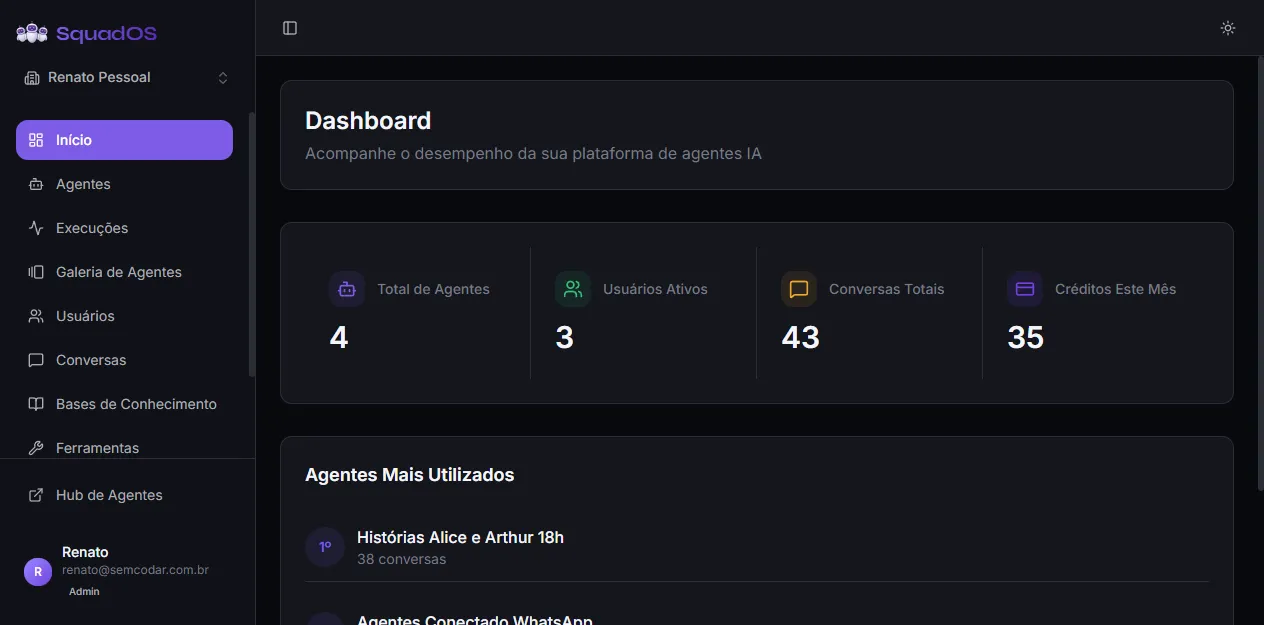
The sidebar shows every area of the product: Home, Agents, Executions, Agent Gallery, Users, Conversations, Knowledge Bases, Tools, Analytics, Settings, and the link to the Agent Hub.
2. Create an agent
Section titled “2. Create an agent”Go to Agents in the side menu and click the + New Agent button in the top-right corner. Give it a name and SquadOS takes you straight into the agent editor.
3. Configure the prompt
Section titled “3. Configure the prompt”The editor opens on the Prompt tab. You have two paths:
- Edit Prompt — opens the manual editor where you write instructions directly.
- Edit with AgentMaker — opens an AI copilot that chats with you and builds the prompt using best practices. Recommended for your first time.
4. Test in the Hub
Section titled “4. Test in the Hub”The top-right of the editor has the Test Agent button. It opens the Agent Hub with your agent preselected so you can chat as an end user.
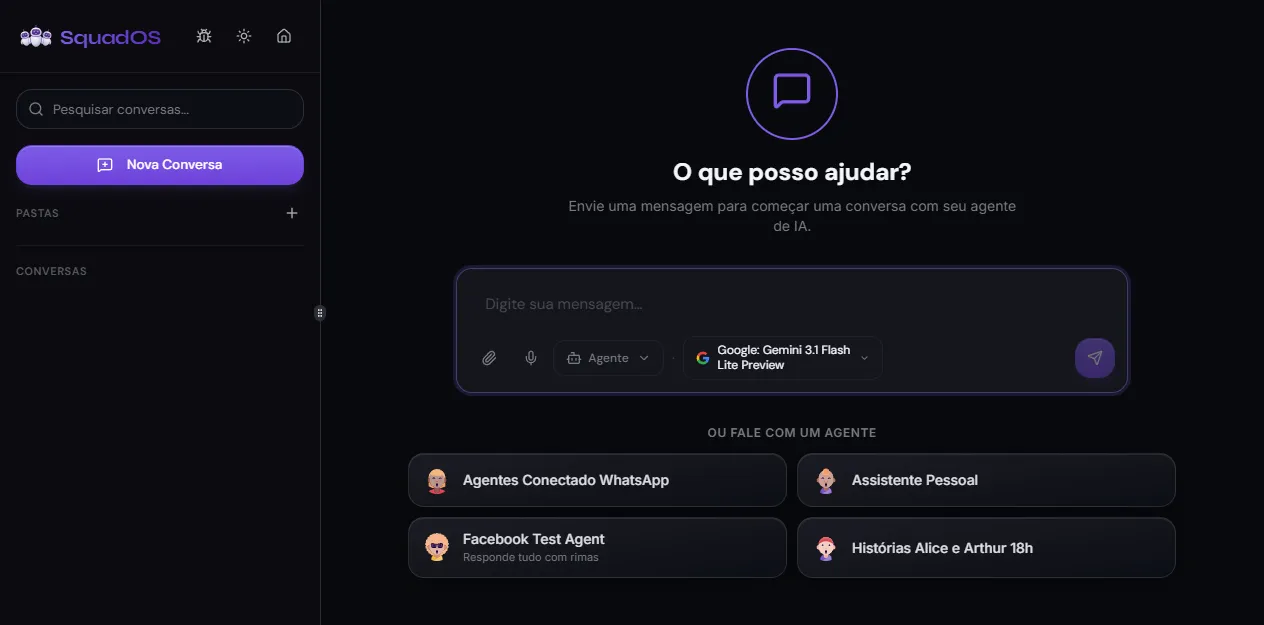
Adjust the prompt and test again until you’re happy.
5. Publish to a channel
Section titled “5. Publish to a channel”When you’re ready, open the editor’s Triggers tab and connect the agent to a channel: Public URL, Site Widget, Telegram, WhatsApp QR Code, WhatsApp Official, or REST API.
From that point, any message that hits the channel runs through the agent flow.