
Managing Conversations
The admin Conversations page (/admin/conversations) is where your team monitors everything happening in the organization’s chats: triage, intervention, and auditing.
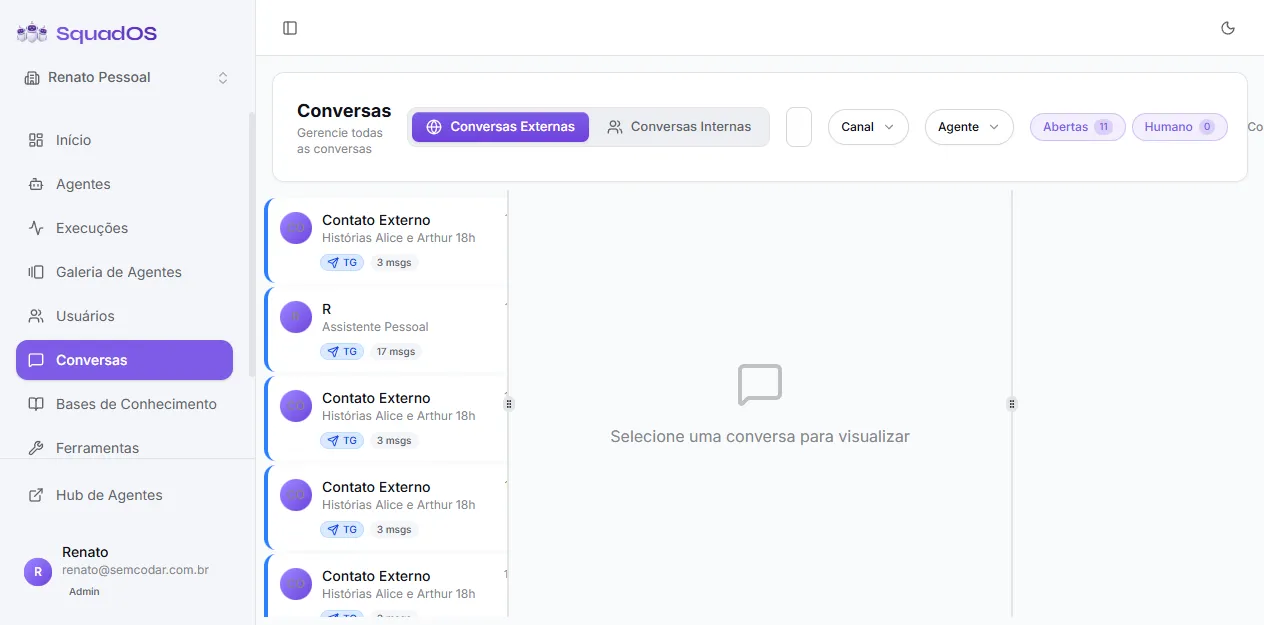
Two tabs: External and Internal
Section titled “Two tabs: External and Internal”At the top, two tabs separate two very different worlds of conversation:
- External Conversations — chats with people outside the organization: public chat (
/a/:slug), embedded widget, WhatsApp, Telegram, and the API channel. This is where customers, leads, and public support land. This tab shows the state filters (Open/Human/Completed) and the Intervene button. - Internal Conversations — chats organization members had in the Hub (
/hub/chat) with the platform’s agents. They serve as a history of internal agent usage. This tab has no human intervention — admins see the content in read-only mode.
The badge on the right side of the header shows quick counters: the globe counts external, the users icon counts internal.
Conversation list
Section titled “Conversation list”Each item shows:
- Avatar and name of the user (or “External Contact” / channel identifier when there is no profile).
- Agent name answering the conversation.
- Channel badge (TG, WA, API, Public, or Web) with its own color, plus a colored left border for emphasis.
- Last message date/time.
- Message counter (
N msgs). - State badge: absent when the conversation is open (the default case, less noise), yellow for human intervention, green for completed.
- Shield icon next to the name when AI is paused — same signal driving the Human state.
The list paginates infinitely — when you reach the bottom, the next page loads automatically.
Filters
Section titled “Filters”Above the list you have several ways to narrow down:
- Search by user or agent — free-text field filtering by user name, email, and agent name.
- Channel — multi-select dropdown to include only WhatsApp, Telegram, API, public chat, or Web conversations.
- Agent — dropdown to focus on one or more specific agents.
- State (External tab only) — Open / Human / Completed pills with counters. See Conversation States.
Filters are reflected in the URL (?states=...&channels=...&agents=...), so you can save and share the link of a specific view.
Right panel — Info and Notes
Section titled “Right panel — Info and Notes”When you open a conversation, the right panel shows two blocks:
- Info — when the conversation started, last message timestamp, user data, the last agent that responded (important in squads with transfer), the last AI model used, and credits consumed.
- Notes — structured memory the agent builds along the conversation via the
Read NotesandWrite Notestools. See Internal Notes.
On mobile this panel becomes a side drawer (the “Notes” button in the conversation header).
Best practices
Section titled “Best practices”- Review real conversations before tweaking important prompts. The External tab shows how the agent actually replies to users, not what you imagine.
- Use the Human filter as your inbox. Every conversation in that state is someone waiting for a human reply.
- Complete what’s done. The Completed state keeps the Open tab focused on what needs attention.
- Internal conversations become test cases. When an agent fails with a colleague in the Hub, the internal conversation is the best evidence for tweaking the prompt — without exposing customers.