
Learning Opportunities (AutoLearn)
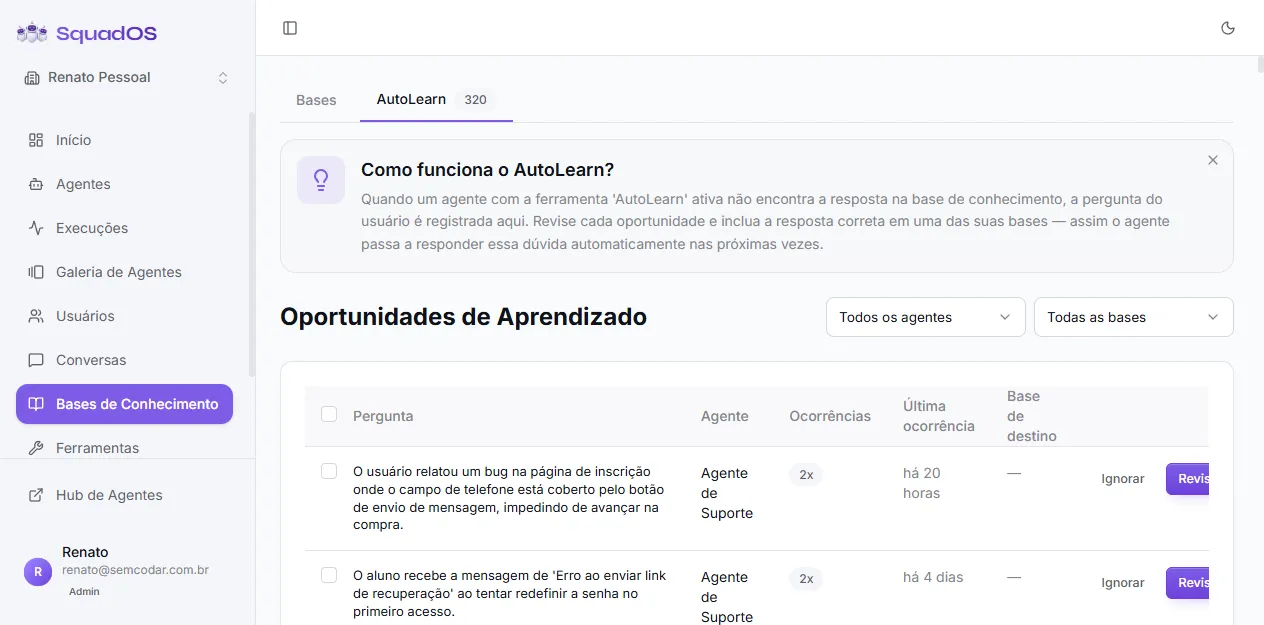
Learning Opportunities are questions your users asked that the agent could not answer with the current base content. Instead of finding out later through logs, SquadOS records each one automatically for the admin to review.
The list lives at Admin → Knowledge Bases → AutoLearn. The badge next to the tab shows how many opportunities are waiting for review.
Agent prerequisites
Section titled “Agent prerequisites”For the agent to generate opportunities, it needs both native tools enabled:
- Search Knowledge Base, with at least one base checked;
- AutoLearn.
Without base search, AutoLearn has no way to know that content was missing.
How it works
Section titled “How it works”When the agent searches the base and does not find a sufficient answer, it triggers AutoLearn under the hood. The tool records:
- the user’s original question;
- the agent that was in the conversation;
- a suggested target base (when applicable);
- an initial suggested answer (when the agent was able to propose one).
Similar questions are aggregated automatically by similarity. If ten different users ask essentially the same thing, you see a single row with 10x in the occurrence counter, not ten duplicate rows.
The table
Section titled “The table”Each row shows:
- Question — aggregated text.
- Agent — source agent.
- Occurrences — how many times the question appeared.
- Last seen — time since the last occurrence.
- Target base — suggested base (or
—when there is no suggestion). - Actions: Dismiss and Review (primary purple button).
Use the All agents and All bases filters at the top right to focus.
Review and add to the base
Section titled “Review and add to the base”Clicking Review opens the “Review and add to base” modal:
- Target base — pre-selected (the suggested base when available, otherwise the first base in the list). You can switch.
- Question — editable; tweak to make it clearer if needed.
- Answer — pre-filled with the agent’s suggestion when available. The final content is your responsibility — review before adding.
- Click Create item in base.
The new item enters the base’s normal processing queue. When it becomes Processed, the agent can already use that answer in future conversations. The success notification offers an Edit item shortcut to open the freshly created item for further tweaks.
Dismiss an opportunity
Section titled “Dismiss an opportunity”Use Dismiss when the question should not become content, for example:
- question outside the agent’s scope;
- sensitive topic the agent should not answer;
- duplicate of something that already exists and just needs a tweak in the original item;
- noise (nonsense, test, spam).
You can dismiss one at a time or select several with the checkboxes and use Dismiss selected on the bulk action bar. Dismissed by mistake? The notification offers Undo for a few seconds.
Best practices
Section titled “Best practices”- Review often. The sooner opportunities become content, the fewer users go through the same bad experience.
- Mind the suggested target base. When it does not fit, switch to the right one before creating. Content in the right place improves retrieval.
- Prioritize by occurrences. Questions with many occurrences affect more people.
- If the same question keeps coming back after you already wrote the answer, the content likely exists in the base but is unclear or uses different terms than users do. Rewrite the original item instead of creating a new one.
- Consider the prompt too. If the agent is not citing the base explicitly enough, tweak the prompt to reinforce when to query it.