
Advanced Settings
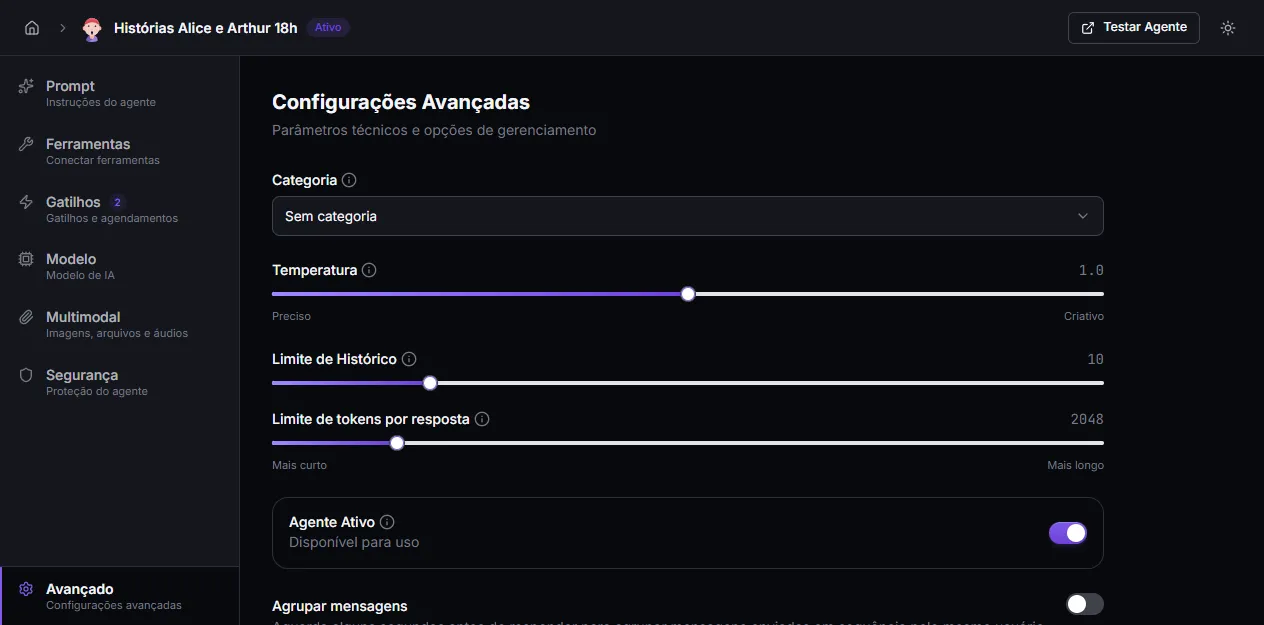
The Advanced tab gathers technical agent parameters and the Danger Zone. These settings affect cost, tone, and availability.
Category
Section titled “Category”Defines access control for the agent within the organization. Users can only use the agent if they belong to a team authorized in the chosen category.
If you don’t need team-based control, leave it as No category — the agent stays accessible to anyone with permission in the organization.
Temperature
Section titled “Temperature”Controls the variety of responses. Goes from 0.0 (more predictable) to 2.0 (more creative). The slider shows the “Precise ↔ Creative” scale.
- 0.0 to 0.3 — ideal for data extraction, technical support, factual answers.
- 0.5 to 0.8 — good default for most conversational agents.
- 1.0+ — creative use (brainstorm, copy, ideas). Tends to produce unstable replies.
Default is 1.0.
History limit
Section titled “History limit”How many previous messages the agent considers when answering. Ranges from 1 to 50.
- More messages = more context, but more cost per call.
- Default: 10.
- Increase when the agent forgets things said earlier.
- Reduce when cost per conversation is high and old context doesn’t matter.
Tokens per response limit
Section titled “Tokens per response limit”Maximum tokens the agent can generate in a response. Slider goes “Shorter ↔ Longer”.
- Default: 2048 (enough for average responses).
- Reduce to force shorter replies.
- Increase when you need longer responses (extensive summaries, large text generation).
Tokens cost money — the higher the limit, the higher the potential cost per reply.
Agent Active
Section titled “Agent Active”Switch that controls the agent’s availability. When off, the agent doesn’t appear to users and doesn’t respond to messages. Useful to pause an agent without losing its configuration.
Group messages (debounce)
Section titled “Group messages (debounce)”When enabled, the agent waits a few seconds before responding, merges the messages the same user sends in a row, and answers them all at once. Useful for channels where people tend to send several short messages in sequence.
- Supported channels: all unofficial WhatsApp connections (WhatsApp QR Code, Z-API, Uazapi, and Evolution), Telegram, and the async API.
- Configurable window: 10 to 60 seconds.
- Each new message resets the counter.
- Hard ceiling: 3× the window since the first message.
- Doesn’t affect the hub, WhatsApp Official (Cloud API), or the sync API — those always respond immediately.
When disabled (default), the agent replies to each message right away, separately — no waiting, no merging.
Split response into multiple messages
Section titled “Split response into multiple messages”When enabled, the agent sends each paragraph of the response as a separate message, with a pause between them and a “typing…” indicator between each pair. The conversation feels more human — as if someone were typing several messages in a row.
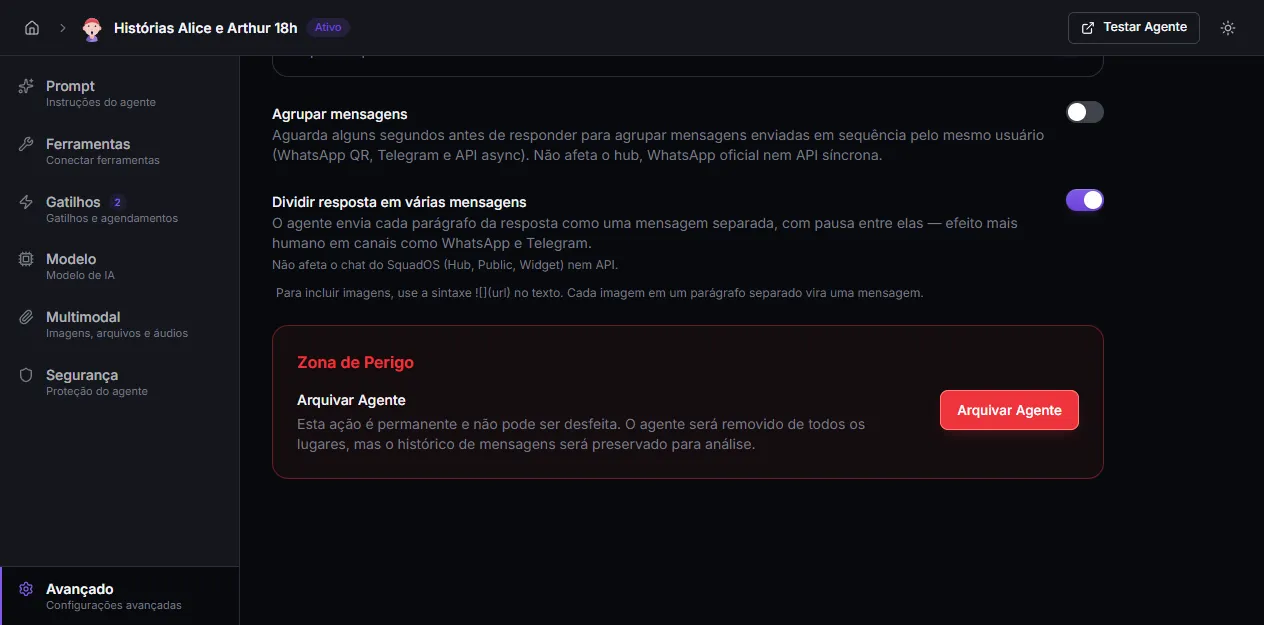
Default: off.
Channels where it applies
Section titled “Channels where it applies”- WhatsApp Official
- WhatsApp BYO (Z-API, UAZ, Evolution)
- Telegram
- Instagram Direct
Channels that ignore this setting
Section titled “Channels that ignore this setting”- Hub, public page, and widget in SquadOS — these already stream in real time; the “human” effect comes from live typing.
- API — integrators expect a stable single response shape; changing it would break existing contracts.
- Instagram Comments — a private reply to a comment is semantically a single message.
How the LLM structures the response
Section titled “How the LLM structures the response”For split to work, the agent needs to separate each message with a blank line in the response text. Example:
Hey! How's it going?
Here's your answer in three parts.
One last important thing: …
This becomes 3 separate messages at the destination.
You can write this explicitly in the agent’s prompt — something like “separate each message with a blank line” — or let the model decide naturally. Most LLMs already structure responses in paragraphs when the content calls for it.
Including images
Section titled “Including images”Use markdown  syntax inside the text:
Look at this beautiful beach!

Want more photos?Becomes 3 messages: the opening text, the image (with caption if it comes in the same paragraph), and the closing text. If the image is in the same paragraph as text, it’s sent as a single message with caption (WhatsApp’s “photo with caption” style).
Cadence and “typing…” indicator
Section titled “Cadence and “typing…” indicator”The pause between messages is proportional to the size of the next chunk — about 20ms per character, with a minimum of 1.5s and a maximum of 6s. The “typing…” indicator is shown between each pair of messages on channels that support it (Telegram, WhatsApp Cloud, Z-API, Evolution, Instagram Direct).
Limitations
Section titled “Limitations”- No support for audio, video, or file attachments via markdown — image only.
- Plain text URLs (without
) stay as text, not converted into attachments automatically. - Long code blocks containing blank lines internally get split. LLMs rarely produce long code blocks in conversational chat responses.
Migration from older agents
Section titled “Migration from older agents”The send_multiple_messages native tool, which existed for the same purpose, was removed. Agents that used that tool were automatically migrated to this setting — it comes enabled for them. If the agent’s prompt mentioned send_multiple_messages literally, review and replace it with a natural instruction about paragraph splitting.
Danger Zone
Section titled “Danger Zone”The final section brings the agent’s only destructive action: archive.
Archiving is permanent and can’t be undone:
- the agent disappears from all lists;
- all triggers are deactivated;
- the agent is removed from teams;
- message history is preserved for analysis.
The confirmation requires you to type the exact agent name. Use the copy button in the modal to avoid typos.
There is no permanent delete via the UI — archiving already disconnects the agent from everything. Data stays for audit and reports.
Where to configure
Section titled “Where to configure”Open the agent under Agents, click Advanced in the sidebar. Make the adjustments (changes persist automatically). The Danger Zone is at the end of the same tab.