
Users, Roles, and Teams
The Users and Teams page (/admin/users) controls who has access to the organization, which role each person holds, and how they are grouped for access control over agents and models.
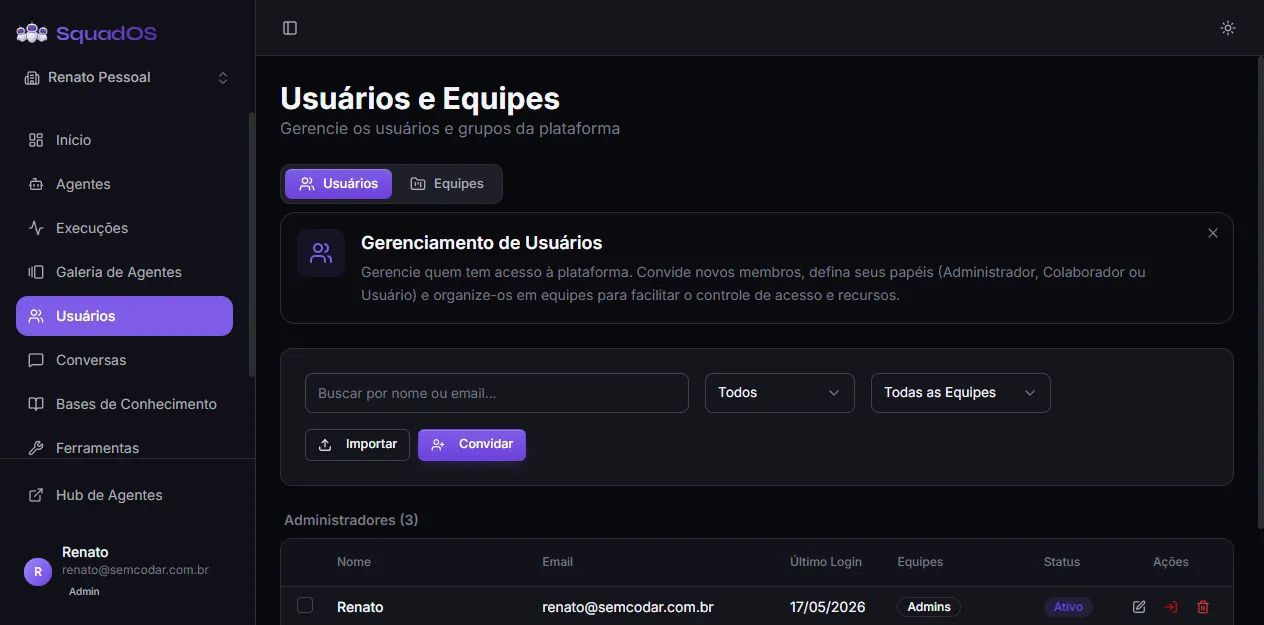
Two tabs
Section titled “Two tabs”The page has two tabs:
- Users: list of active organization members and pending invitations.
- Teams: create and edit teams (groups) with access control over agent categories and models.
SquadOS uses a hierarchical role model (each level includes the previous ones):
- User: uses the Hub, talks to the agents their team has access to.
- Collaborator: above User, with extra permissions to edit organization content.
- Admin: manages agents, bases, tools, conversations, users, and organization settings.
- Owner: has all admin permissions + can edit organization identity and billing and transfer ownership. Every organization has exactly one owner. Shown with an Owner badge and crown icon.
Superadmin is a parallel axis (platform-level) and does not appear as a selectable role inside the organization.
Invite users
Section titled “Invite users”In the Users tab:
- Click Invite (top right).
- In the modal, fill in name, email, and role.
- Optionally assign a team.
- Send.
The user gets an email with a link to accept the invitation and finish signup. While pending, they appear in the table with an amber Pending invite badge.
Bulk import
Section titled “Bulk import”The Import button opens a modal where you paste/upload a list of emails to invite at once (with a default role and team).
Resend / cancel an invitation
Section titled “Resend / cancel an invitation”On each pending-invitation row:
- Refresh icon → resends the email.
- Red X icon → cancels the invitation (confirms via the Cancel Invitation modal).
Edit a user or revoke access
Section titled “Edit a user or revoke access”On each active-user row:
- Pencil icon → opens the edit modal (change name, role, team).
- Red Trash icon → removes the user from this organization (keeps their account in other orgs).
- Red Login icon (superadmins only) → opens a session impersonating that user.
- Purple Crown icon (only visible to the owner, on their own row) → transfer ownership to another member.
The user with the Owner badge cannot be removed or have their role downgraded by other admins — only by another owner via transfer.
Filters and bulk actions
Section titled “Filters and bulk actions”Above the table:
- Search by name or email;
- Status filter (Active / Inactive / All);
- Team filter.
When you check the boxes in the first column, a N selected bar appears with bulk actions: Change Role, Change Team, Suspend.
Teams tab
Section titled “Teams tab”The Teams tab groups users by department or function and defines what that group can access. Each team controls:
- Agent Categories members can use in the Hub;
- Conversations without agent (toggle “Allow conversations without agent”);
- Model Selector (whether members can change the agent’s default model);
- Allowed Models (subset of the organization’s models this team can use).
The New Team button in the top right opens the creation modal. Default view is table; switch between Cards and List with the toggle at the top.
Create / edit a team
Section titled “Create / edit a team”In the New Team (or Edit Team) modal:
- Name (required, e.g.
Sales Team). - Description (optional, with explanatory tooltip).
- Agent Categories: check the categories this team can access (or use Select All / Deselect All).
- Advanced section (collapsible):
- Allow conversations without agent (toggle);
- Allow model selector (toggle);
- Allowed Models (checkbox list — none selected = all available).
- Click Save or Create.
Delete a team
Section titled “Delete a team”On the teams table, the trash icon asks for confirmation in the Delete team? modal (the action cannot be undone).
Best practices
Section titled “Best practices”- Only give Admin to people who really need to configure agents, tools, billing, and users.
- For collaborators who will build prompts and bases (but not touch billing), use Collaborator.
- Set up teams early — that way you do not need to review permissions one by one as the organization grows.
- Review users periodically. Remove access from people who left the team.
- Use corporate emails whenever possible and avoid sharing accounts.