
Chat Interface
The chat interface is where users talk to agents, follow answers, send attachments, and revisit history. The same chat engine ships in three contexts with minor differences.
The three contexts
Section titled “The three contexts”- Hub (
/hub/chat) — authenticated environment for organization members. Sidebar on the left with search, folders, pinned conversations, and a “New Conversation” button. - Anonymous chat — no login. Can be a full page at
/a/:slug(public channel) or a widget embedded in the site at/embed/:slug(widget channel). No history sidebar — only the current conversation. - Admin (
/admin/conversations) — read-only by default, with the ability to Intervene on external conversations. See Human Intervention.
Conversation elements
Section titled “Conversation elements”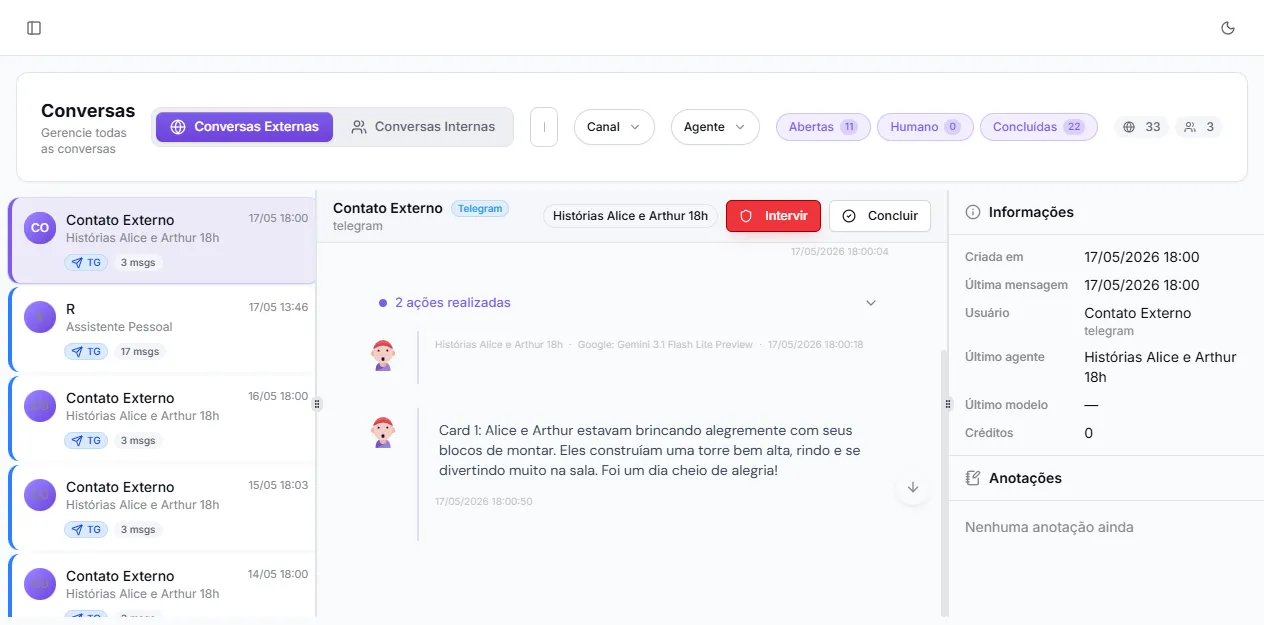
The main chat area always has:
- Header with the user’s name, the channel badge, and the agent badge. In admin, you also see Intervene, Complete, or Return/Reopen buttons depending on the state.
- Message history in chronological order. Each agent reply shows the agent name, the model used (
Anthropic: Claude Haiku 4.5,Google: Gemini 3.1 Flash Lite Preview, etc.), and a timestamp. - Agent steps (“N actions taken”) appear inside the messages. Click to expand and see which tools were called, with which arguments and result.
- Composer at the footer with attachment button, audio button (microphone), agent selector, and model selector. Send with Enter (Shift+Enter for a new line) or by clicking the paper plane.
In the Hub you also get the sidebar on the left with:
- Conversation search;
- New Conversation button;
- List of folders (configurable by the user);
- List of conversations, where each item has a menu (share, rename, move to folder, export, pin, delete).
Special messages
Section titled “Special messages”Some messages render with their own format:
- Agent transfer — when an agent calls the
transfer_to_agenttool, a “Conversation transferred from X to Y” badge appears and subsequent replies come from the new agent. - Generated images — when the agent uses image generation, the image renders inline and can be opened in a lightbox.
- Rich markdown — lists, quotes, code blocks, tables, and links are rendered with formatting.
What changes per channel
Section titled “What changes per channel”| Feature | Hub | Anonymous (public/widget) | Admin |
|---|---|---|---|
| History sidebar | yes | no | yes (admin list) |
| Intervene/Complete button | no | no | yes (external only) |
| Composer enabled | yes | yes | only when intervening |
| AI model selectable | yes | no | no |
| Share conversation | yes | n/a | n/a |
Features like attachments, image generation, or audio depend on the agent (configured at Edit agent -> Attachments), the chosen model, and the enabled tools.
Tips for better conversations
Section titled “Tips for better conversations”- Explain the goal before asking for the action. Agents guess poorly.
- Include relevant data in the first message. Each new message reopens the token cycle — front-loading info is cheaper in credits.
- Send files when they help. Vision-capable models understand screenshots, PDFs, spreadsheets.
- Answer clarifying questions the agent asks — it only asks when it needs to.
- Don’t bundle many unrelated requests in a single message. Split unrelated topics into separate conversations.
When something goes wrong
Section titled “When something goes wrong”- Wrong answer? Expand the steps (“N actions taken”) and check whether the agent called the expected tool with the right arguments. See Execution logs for the full history.
- Agent stuck? In the Hub, start a new conversation. In admin, click Intervene to reply yourself.
- Audio not working? See Audio and Transcription, particularly the section on browser permissions.