
Human Intervention
Human intervention lets an admin step into an ongoing conversation, pause the agent, and reply directly to the end user. Use it when the agent gets stuck, when the case needs human judgment, or when the customer explicitly asks to talk to a person.
When to intervene
Section titled “When to intervene”- The agent isn’t getting the request after several attempts.
- The case involves a sensitive decision (non-standard refund, delicate issue, escalation).
- The user asked to talk to a human.
- The agent triggered the Human Intervention tool automatically.
Internal conversations (inside the Hub) don’t accept intervention — the admin panel goes into read-only mode. Intervention only makes sense for external channels: public chat, widget, WhatsApp, Telegram, and API.
Taking over a conversation
Section titled “Taking over a conversation”- Open the Conversations page in the admin panel and select the conversation you want to take over.
- In the chat header, click Intervene.
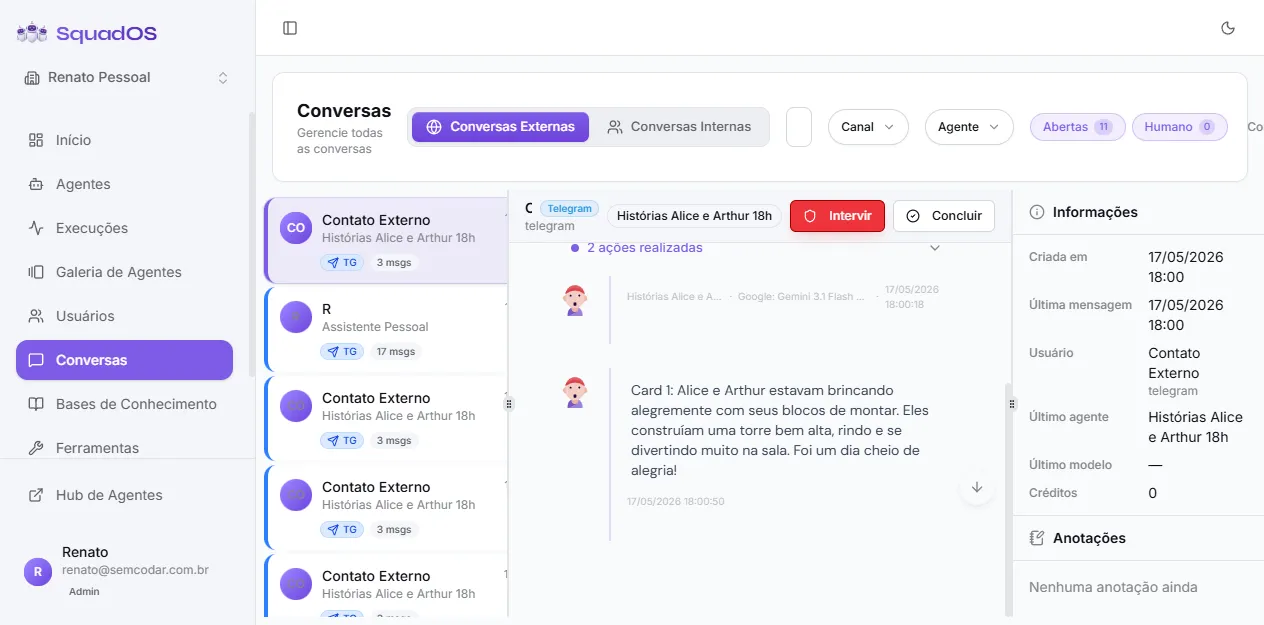
- Confirm in the modal:
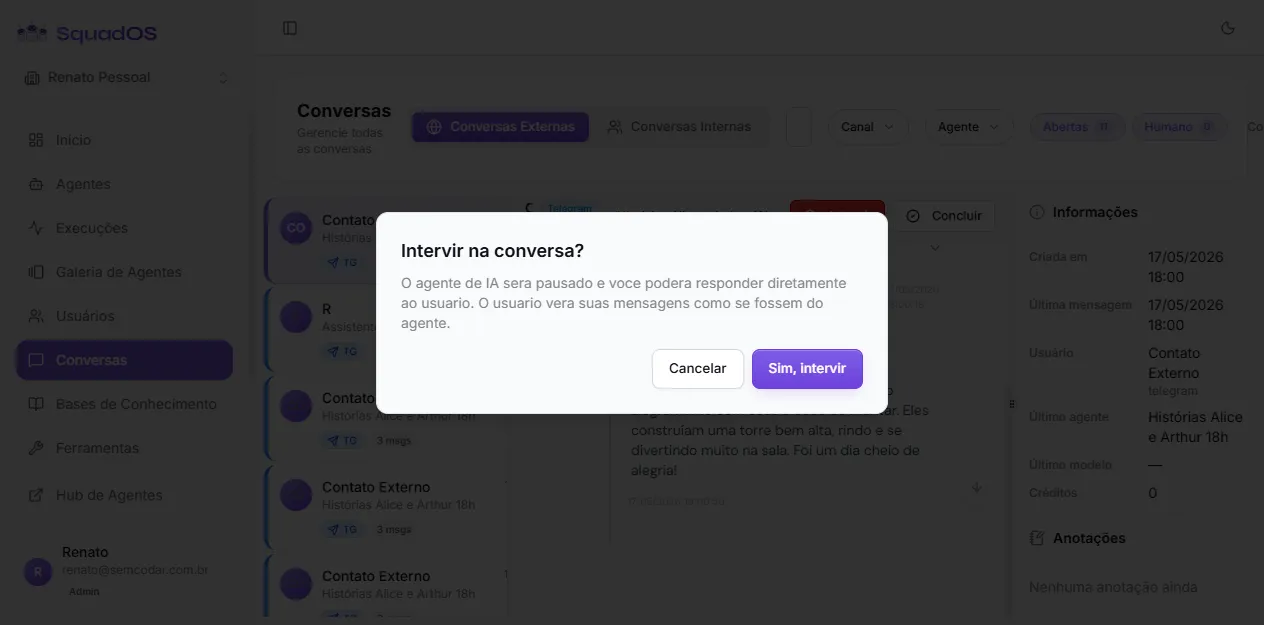
“Intervene in the conversation? The AI agent will be paused and you’ll be able to reply directly to the user. The user will see your messages as if they came from the agent.”
- The agent is paused immediately for that specific conversation.
From that point on, a composer appears at the footer and a notification shows “Intervention activated”. The Intervene button turns into Return in the header.
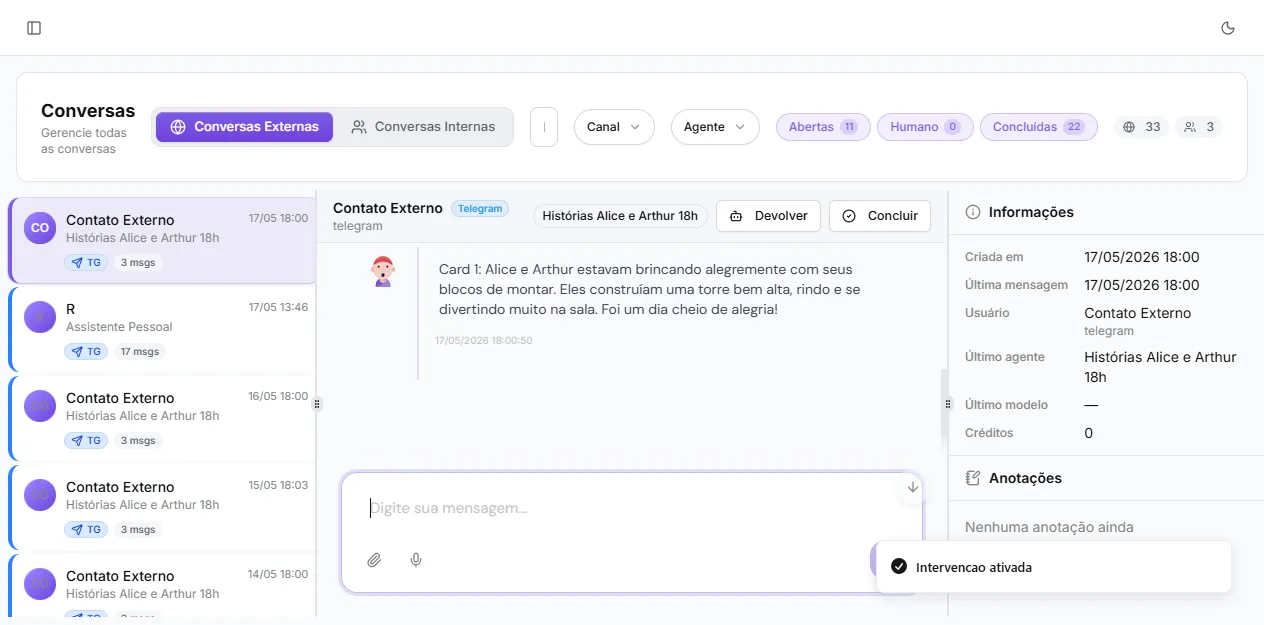
Anything you type is sent to the end user through whatever channel they’re using — if they’re on WhatsApp, your reply lands on WhatsApp; if they’re on the site’s public chat, it lands on the public chat.
How the user sees your message
Section titled “How the user sees your message”Your reply appears to the user as if it came from the agent — same name, same avatar. This is intentional: the user doesn’t need to know there’s a human on the other side. Internally the message is flagged with sent_by_admin: true, so admins can tell them apart in the history.
When the agent asks for help — the Human Intervention tool
Section titled “When the agent asks for help — the Human Intervention tool”The agent can also pause itself when it realizes it needs help. That’s the job of the native Human Intervention tool:
- The agent calls the tool when it decides it’s time to escalate.
- SquadOS POSTs to the webhook URL configured on the tool, with conversation context, agent info, the reason for the handoff, and the last few messages.
- The agent stops responding on that conversation (
ai_enabledflips tofalse) until someone reactivates it manually.
Configure the tool at Agents -> [agent] -> edit -> Tools -> Human Intervention with the HTTPS URL of your CRM, n8n, Zapier or internal system. Enable this tool when you want the agent to know how to call for help on its own.
Hand control back to the agent
Section titled “Hand control back to the agent”When you’re done handling the case:
- In the conversation header, click Return.
- The agent resumes answering future messages automatically.
There’s no confirmation step here — it’s a safe, reversible action. If you need to intervene again later, just click Intervene again.
Special case: API channel
Section titled “Special case: API channel”Conversations on the API channel don’t get the Intervene button in the header, because the API flow is driven by an external system. When an API conversation is paused (usually via the Human Intervention tool), a yellow banner shows at the top with a Reactivate agent button — use that when the external handoff is complete.
Good practices
Section titled “Good practices”- Let the user know you’re taking over if it takes a moment to step in — they may be waiting on the agent.
- Complete the conversation after resolving it, instead of just handing it back to the agent. See Conversation States.
- Use notes to record context other admins (or the agent itself) need later. See Internal Notes.
- Don’t leave the agent paused and forgotten — a conversation under intervention gets no auto-replies, so if the admin disappears the user is left hanging.